Forward Booking Confirmations
Last updated October 10, 2026
Every workspace has its own Booking Forward Address. Forward a booking confirmation to it and JourneyFuse reads the email, works out which client and trip it belongs to, and gets the booking ready for you to check and save. No retyping from the supplier's email.
It works for airline, hotel, cruise, tour operator and DMC confirmations, including proformas that arrive as a PDF attachment.
Find your address
Go to Settings → Email and find the Booking Forward Address card. Click Copy.
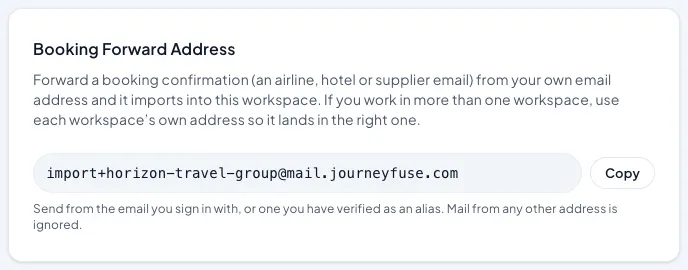
The address looks like import+your-agency@mail.journeyfuse.com. If you work in more than one workspace (for example your own agency and a host agency), each workspace has its own address, so a forward lands in the one you sent it to.
Tip: Save the address as a contact named "JourneyFuse Bookings" so forwarding is two clicks.
Forward a confirmation
Forward the supplier's email from the email address you sign in with, or from one you have verified as an alias. Mail from any other address is ignored, so nobody outside your agency can add bookings to your trips.
A PDF attachment is fine. Many cruise lines and DMCs send the real details only in the PDF, and that is what gets read.
Review and save
When the AI has read the email you get a notification. Open it to see the review screen:
- Matched forwards already have a client and trip picked. Check they are right.
- Needs review forwards could not be matched with confidence. Pick the client and trip.
Check the supplier, dates, travelers, amounts and currency, then click Save & Import. The booking is added to the trip.
Foreign currency
The booking keeps the currency on the confirmation. A EUR or CAD confirmation becomes a EUR or CAD booking, and it is shown on its own line rather than added into your home-currency totals. Always glance at the currency on the review screen before saving.
Not the same as the commission address
Settings → Email also shows a Commissions Import Address. That one is for supplier remittance statements, the emails that tell you what commission was paid to you. See Import and Review Supplier Commission Statements.
A proforma or invoice for what you owe a supplier goes to the Booking Forward Address, not the commission address.
Prefer not to forward?
You can upload the same PDF or paste the email text with AI Import Booking on the trip page. See AI Booking Import.
This is part of JourneyFuse’s travel advisor CRM: clients, leads, travelers and their trip history.
Related Articles
Meetings: Let Prospects Book a Time With You
Share one link that lets a prospect pick an open time on your calendar. The booking becomes a lead, lands on your calendar, and sends them a real calendar invite.
Managing Leads
Track potential clients through your pipeline, move them through stages, and convert them to clients when they're ready to book.
Tracking Client Referrals
Give clients a personal referral link, credit referred leads to them, and see who sends you the most business.