Import and Review Supplier Commission Statements
Last updated October 13, 2026
A remittance statement is the supplier's explanation of a commission payment. One statement may cover several travelers, reservations, and advisors. JourneyFuse reads that statement, compares each line with your expected commissions, and keeps the review in one place.
Start in Commissions → Imports
Your agency's forwarding address appears at the top of Commissions → Imports. Use Copy so you do not have to type it.
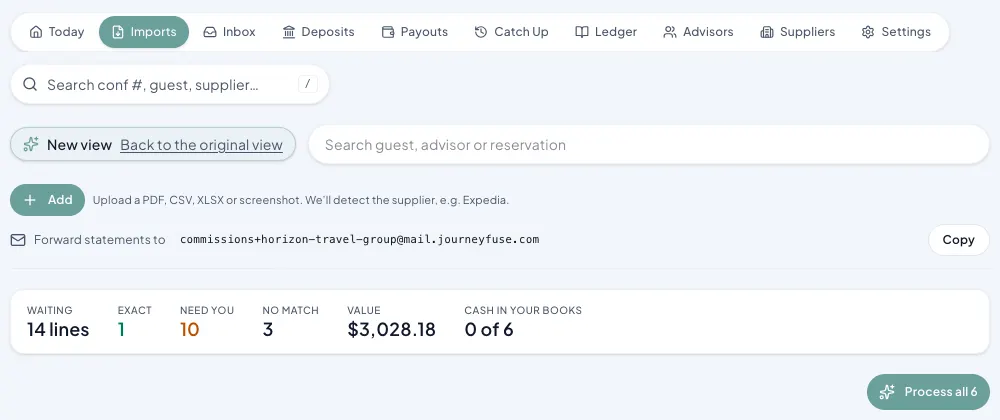
There are three ways to bring in the information:
- Forward the supplier email to the address shown on the page. Keep the original PDF, spreadsheet, CSV, or text attachment with the forward.
- Use Add → Upload statement for a PDF, CSV, spreadsheet or screenshot, or Add → Paste text when the useful information is in the email body or another block of text.
- Use Add → Record a check when you have the payment details but no statement to import.
When you upload or paste a statement, enter the Statement total: the amount the statement says the supplier paid. It's required. JourneyFuse compares it with the rows as you type. If they don't match, you're asked before importing: rows above the total are expected when the supplier deducted fees, and rows below it can mean a row is missing. After import, the Inbox asks you to explain any difference, so a dropped or doubled row can't go unnoticed.
Forwarding is usually the easiest choice because it preserves the supplier's attachment and reference numbers. If the statement email is already in your JourneyFuse Inbox from your connected mailbox, open it and click Send to AI Import → Commission statement: it arrives here with its attachments, the same as a forward. A new statement normally appears in Imports after JourneyFuse finishes reading it.
Read the statement before you process it
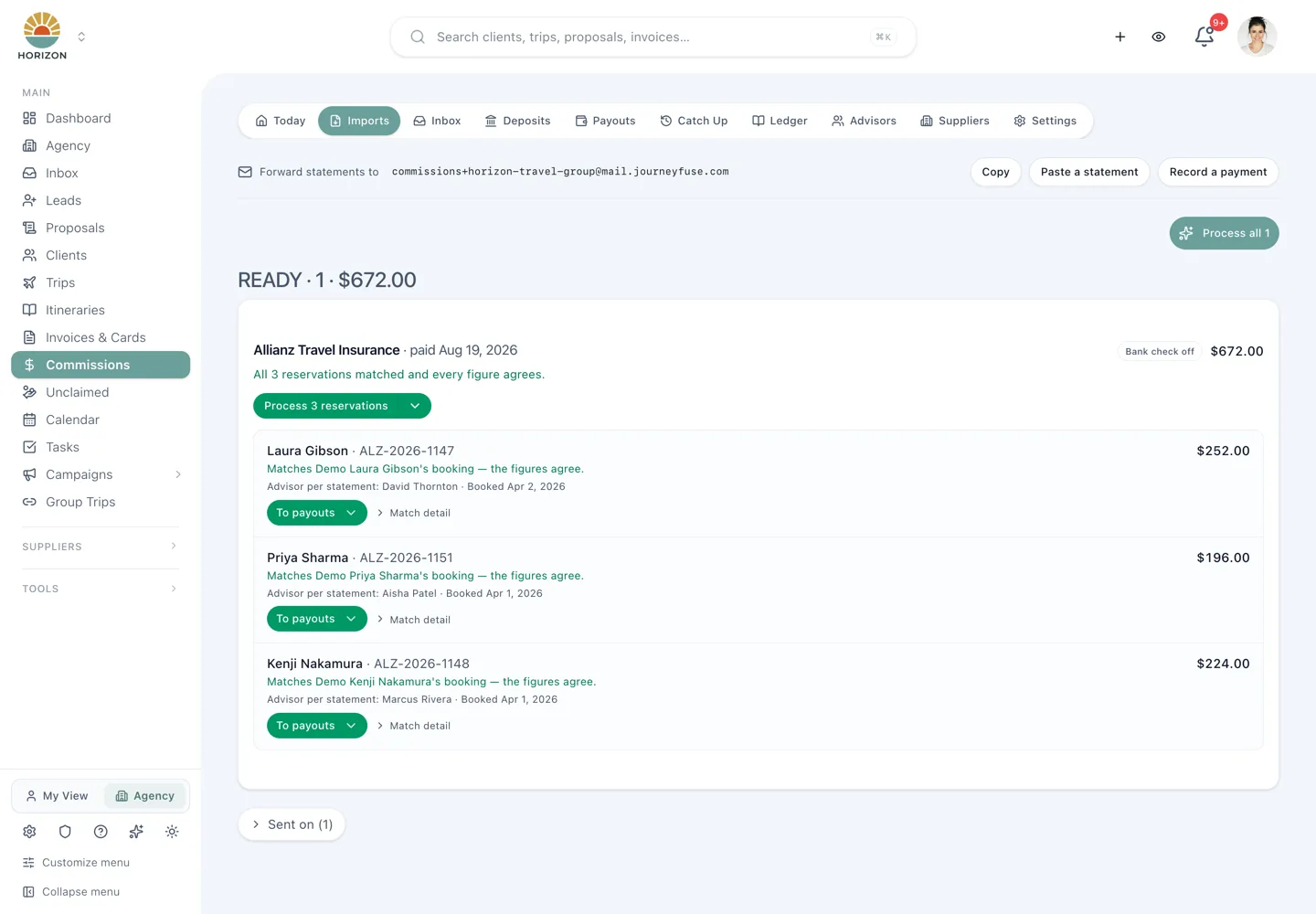
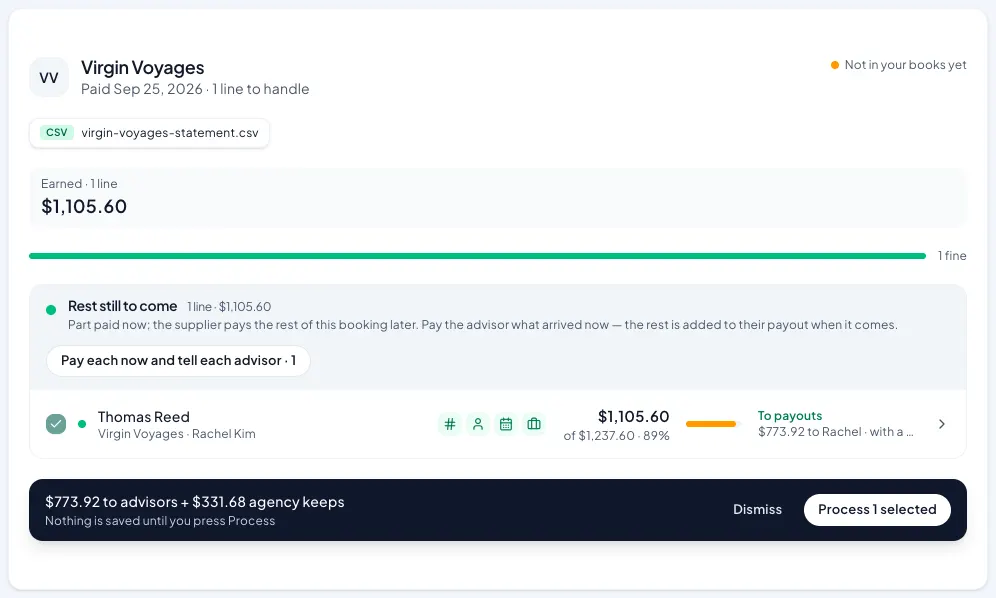
Each statement is one row in the queue: the supplier, payment date, amount still to handle, a coloured bar, and what its lines need (for example 1 needs you · 3 to check). Statements with a line that needs you come first, and the first of them opens on its own. Click any row to open it and see every reservation JourneyFuse found; click again to close it. Searching the queue opens any statement with a matching line.
Each line says in words whether it is the right booking. A clean line shows All 4 match (reservation, guest, travel date, advisor). A line with a problem names it, such as Guest differs or Reservation doesn't match. Hover for what was compared.
Check that:
- the statement total matches what the supplier says it paid;
- the line amounts add up to that total;
- the traveler and confirmation number belong together;
- the booking and travel dates make sense;
- the advisor named on the statement is the advisor who owns the booking; and
- the money really reached the bank when Bank check off is shown.
JourneyFuse may say that every reservation matched and every figure agrees. That is a strong starting point, but you still own the final review.
Use Match detail for the proof
Open Match detail on any line to compare two records side by side:
- Advisor submitted shows the commission already expected in JourneyFuse.
- Statement says shows what the supplier sent.
The comparison includes the advisor, traveler, reservation, supplier, dates, expected amount, and paid amount when those details are available. This is especially useful when two bookings have similar names or amounts.
What the processing choices mean
One bar at the bottom of the page shows what every ticked line across the queue will do, such as $825.12 to advisors · $344.48 agency keeps · $1,858.58 to the Inbox, and one Process button handles all of them. Before anything is saved it lists each statement and what will happen to it. Untick a line, or a whole statement with the checkbox on its row, to leave it in the queue for next time. Dismiss statement inside an open statement removes just that one.
When every selected line has a trustworthy match, processing creates the supplier payments and connects them to those commissions. The line's destination can also show To payouts when its advisor and payout details are ready for the next stage.
Use the dropdown beside the processing button when you need a different next step. Do not process the statement just to make it disappear from the queue.
If a line is uncertain, review or edit it instead of forcing a match. A payment can remain unmatched while you check the supplier portal, confirmation number, traveler, or expected amount. The next lesson explains how to handle clean matches, amount differences, and unresolved lines.
After the statement is processed
Processed statements move under Sent on. The payments remain available in the commission Inbox and ledger, so the agency keeps the history instead of losing it when the ready queue is cleared.
Processing a statement records and matches what the supplier says it paid. It is separate from confirming the bank deposit and separate from paying the advisor. That separation helps prevent an advisor payout before the agency has actually received the money.
Helpful habits
- Forward the original email with its attachments instead of copying only the cover note.
- Keep confirmation numbers on bookings; they are often the strongest match.
- Compare the statement total with the sum of its reservation lines.
- Check older items in Sent on before forwarding the same statement again.
- Leave an uncertain line unresolved until you have enough information.
Frequently asked questions
What if one statement covers several reservations or advisors?
That is normal. JourneyFuse separates the statement into reservation lines and evaluates each one independently.
What if the amount is different from what we expected?
Do not change the expected commission just to make the numbers agree. Open the match details, confirm the reservation, and handle the difference as an exception so the original expectation and the supplier's actual payment remain understandable.
A short payment is not always the supplier underpaying. Many suppliers pay on the pre-tax rate, while a claim is often worked out on the full total. When the statement prints what it paid on, the Imports card shows both figures. When it does not, the card works out the base the payment implies at the claim's own rate (for example, "commission on $737.83 of the $830.03 filed"). Check whether the claim included taxes or fees before you chase the supplier.
What if a statement names an advisor but nobody has claimed it?
The card says which advisor the statement credits. Ask that advisor to file the claim rather than treating the money as unclaimed.
What does "Could be … booking" mean?
The statement's line looks like one open claim, but not closely enough for JourneyFuse to match it for you. The reservation number may be written differently, or the amount may be a little off. The card names the booking and what it expected. Open the statement, compare the line with that booking, and match it yourself if it is the same reservation. The money is not unclaimed, so don't chase an advisor for it.
What if the statement is dated in the future?
Some suppliers send an upcoming-payment or forecast report — Hilton's "Upcoming Payments Report" is the common one — listing commission they intend to pay on a future date. Nothing has arrived yet. When the statement's own payment date is still in the future, the Imports card and the home card say so: "The statement's own payment date is Oct 9, still in the future — this money has not been paid yet."
Don't process it. Recording it books money the agency does not have, and the real remittance for the same booking will arrive later and be recorded again. Dismiss the forecast and wait for the remittance. A normal remittance advice dated a day or two ahead carries the same line and is safe to process once the payment lands.
What if a statement says the supplier paid nothing on a booking?
Some statements list reservations that paid $0, with the reason. Marriott's Statement Detail does this, for example "RESERVATION CANCELED" or "NON-COMMISSIONABLE: TRAVEL INDUSTRY RATE", and so do TACS statements ("NO-SHOW", "CANCELLED"). Upload the statement from the Commissions Inbox as usual. Each $0 row shows Paid nothing with the supplier's reason, and is never recorded as a payment. A statement where every row is $0 can still be kept: enter 0.00 as the statement total and choose Keep statement (nothing paid).
When you import, JourneyFuse finds each booking by its confirmation number and marks it Not commissionable. The expected commission is closed, and its reason reads like "Not commissionable: Marriott paid no commission — RESERVATION CANCELED (Marriott statement 2026-10-09)". It stops showing as owed. If the supplier says the stay was cancelled or a no-show, the booking is also cancelled, with the same reason. A booking where commission has already come in is left alone. A message after the import says how many were marked, cancelled, or had no booking on file.
What if the same payment arrives in two formats?
Some suppliers send one payment twice in different formats. TACS, for example, sends an emailed statement after its fees and a Pay Detail export before them. The totals differ, but the bookings are the same. When you confirm a statement whose bookings are already on one you confirmed, JourneyFuse asks first. Confirm it again only if it really is a second, separate payment.
What if a Paymode email says the remittance is too large?
When a payment covers many reservations, Paymode's "Confirmation of Payment" email shows the payment amount and Payment Number but leaves out the reservation list. Under Remittance Summary it says the remittance is too large for the email and asks you to sign in. The images attached to that email are Paymode's logos, not a statement.
The card in Imports says Paymode left the line detail out of this email and names the Payment Number. To finish it:
- Sign in to Paymode and find that Payment Number.
- Download its remittance.
- Click Upload the remittance on the card and upload the file. JourneyFuse reads the reservations from it and matches them like any other statement.
You don't have to keep the email open until then. Any payment notice that arrives with only a total and no reservation lines appears in the Inbox under Remittances to fetch, for example "Get the full remittance from Paymode for Carnival — $4,497.00, payment CAXT45Z4USD279". It stays there even if you dismiss the email, and it leaves by itself when you upload a statement that names that payment number or pays the same amount with its lines. Nothing is recorded from the notice itself.
How do I see who a combined Inbox line paid for?
When several statement lines pay one claim, such as a hotel group block paid per attendee, the Inbox shows them as one line so you can match them together. Open the line to see What this line covers: each traveler, their reservation number and amount, and whether together they match the claim (for example "Together $267.12 — the same as the $267.12 claim").
Why does an item say "No supplier read"?
Anything forwarded to the import address lands in Imports, including emails that are not statements, like password resets. An email with no attachment, no supplier, no booking and no dollar amount anywhere in it is filed automatically under Dismissed, with a note saying why. Click Undismiss if it was a real statement. Anything else that can't be read stays in the queue: the card says no supplier, amount or booking could be read and shows the email's subject. Open it, and dismiss it if it is not a commission statement.
Can an advisor forward a statement?
The import address belongs to the agency workspace. Decide who in your agency is responsible for forwarding statements and who is allowed to review and process commission money.
Does processing the statement mean the advisor has been paid?
No. Statement processing, bank deposit confirmation, and advisor payout are separate steps.
This is part of JourneyFuse’s travel commission tracking: expected commissions, supplier statements and payouts.
Related Articles
Referral Partners
Track what you owe the partners who send you business: their share of your commission, group trips at a higher rate, and what you have paid them, with an Excel export.
Match Your Commissions to TESS
Still running payroll in TESS while you move over? Upload TESS's Checks Received report and JourneyFuse records what TESS has collected and paid, so your ledger matches TESS without re-typing a single check.
What Each Commission Status Means
Every status an advisor sees on a commission, what it is waiting on, and when it changes. Also: the three progress dots, and how to avoid logging a proposal's booking twice.