Referral Partners
Last updated October 14, 2026
Some of your business comes from referral partners: a club, an influencer, a local business or a group leader who sends you travelers in exchange for a share of your commission. Commissions → Partners keeps that share for you, booking by booking, so the spreadsheet you used to update by hand fills itself in from your trips.
Perfect for: referral and affiliate partners, a group leader who earns more on the group trips they bring you, and any outside party you pay out of your own commission.
Owners and admins only. Partner rates and payouts are agency finances, so advisors never see this page.
How It Works
- Tag the partner's trips. Use one tag for everything a partner sends you, for example a tag with the partner's name. A group trip the partner brings can carry its own tag as well.
- Add the partner. Go to Commissions → Partners → New partner. Enter the name, pick their tag, and set their Default rate (the percent of your commission they earn).
- Add group rates if they earn more on some trips. Under Group trip rates, click Add a group trip rate, pick the group's tag and enter its rate.
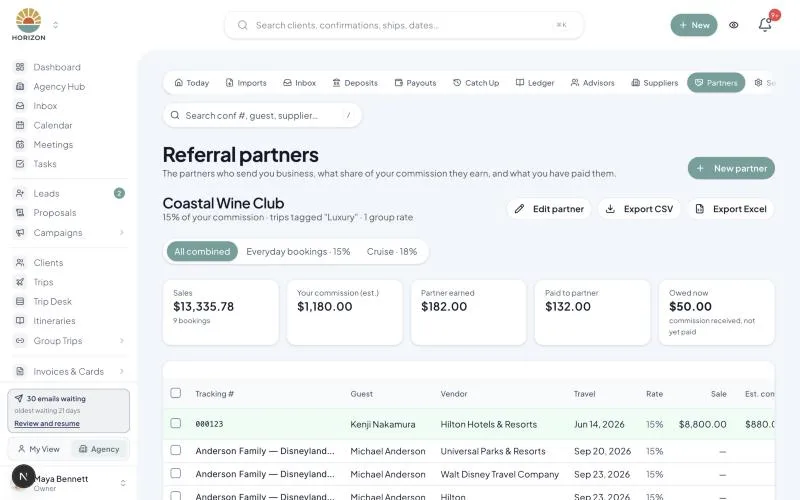
- Work from the table. Every tagged trip's bookings appear with the sale, your commission and the partner's share. Tick Paid when you pay the partner and set the date.
Your commission, after your host
If you work under a host agency, set Host agency keeps (%) to the host's share. The partner's estimate is then worked out on your commission after the host's cut. Leave it at 0 if you are independent.
Commission you have actually received is already your share, so the partner's amount owed is their rate on what you received.
Reading the Table
The tabs along the top split the partner's bookings:
- Everyday bookings holds trips with the partner's own tag, at the default rate.
- One tab per group trip rate holds trips with that group's tag, at the group's rate. A trip with a group tag is counted there only, never twice.
- All combined shows everything, with a Rate column.
The totals across the top are for the tab you are on:
| Total | What it is |
|---|---|
| Sales | The booking totals, and how many bookings |
| Your commission (est.) | The estimated commission on those bookings, after the host's share |
| Partner earned | What the partner earns: the owed amount once commission is in, else the estimate |
| Paid to partner | What you have marked paid |
| Owed now | Commission you have received that you have not paid the partner yet |
Each row shows the Tracking #, guest, vendor, travel date, sale, estimated commission, your share, the partner's estimate, the commission received and the partner owed. Paid rows turn green.
A warning sign next to Commission received means what came in is well away from the estimate (at least 10% and $25). That is the one to raise with the partner, or with the supplier.
Marking Payments
- Tick Paid on a row to mark it paid today, then change the Paid date if you paid on another day.
- To pay a whole month at once, tick the checkboxes on the left, set Paid on and click Mark paid.
- Mark not paid undoes it.
Typing Your Own Figures
Click any estimated commission, commission received or partner owed amount and type your own figure. Typed figures show underlined and stay until you clear them. Clear the box and press Enter to go back to the calculated figure.
Exporting
- Export Excel downloads a workbook with a Summary sheet (each section's totals and the overall total) and one sheet per section.
- Export CSV downloads every row in one table, with a Section column.
Tracking Numbers
If you give every trip your own number, enter it in Tracking # on the trip's Edit Trip → Details tab. It shows in the partner table and in both exports. It is never shown to clients.
Leads From a Partner's Form
When a lead that carries a partner's tag (for example from a form that tags every new lead) becomes a trip, the partner's tags move to the trip with it, so the booking lands on the partner's table without re-tagging. Only partner tags move. Your other lead tags stay on the lead.
FAQ
A trip is missing from the table. Check that the trip itself carries the partner's tag or a group tag, not only the lead or the client. Tags on a client or lead do not count.
A cancelled booking disappeared. Cancelled bookings drop off the table, unless you had already marked the partner paid on it.
Can a partner see this page? No. Partners have no login. Send them the Excel export.
This is part of JourneyFuse’s travel commission tracking: expected commissions, supplier statements and payouts.
Related Articles
Import and Review Supplier Commission Statements
Bring a supplier remittance into JourneyFuse, check each reservation, and turn a clean statement into matched commission payments.
Match Your Commissions to TESS
Still running payroll in TESS while you move over? Upload TESS's Checks Received report and JourneyFuse records what TESS has collected and paid, so your ledger matches TESS without re-typing a single check.
What Each Commission Status Means
Every status an advisor sees on a commission, what it is waiting on, and when it changes. Also: the three progress dots, and how to avoid logging a proposal's booking twice.