Automations
Last updated September 25, 2026
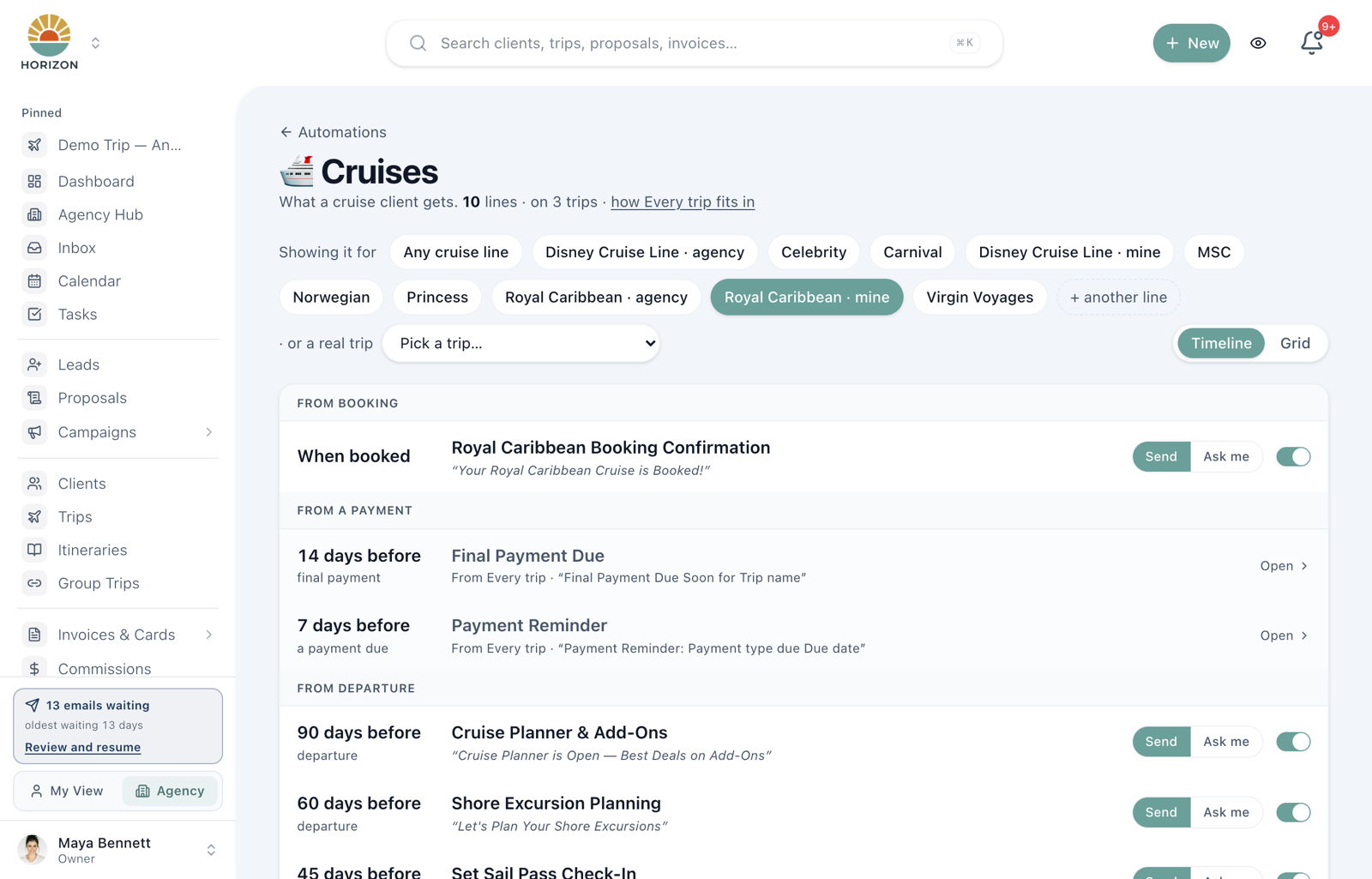
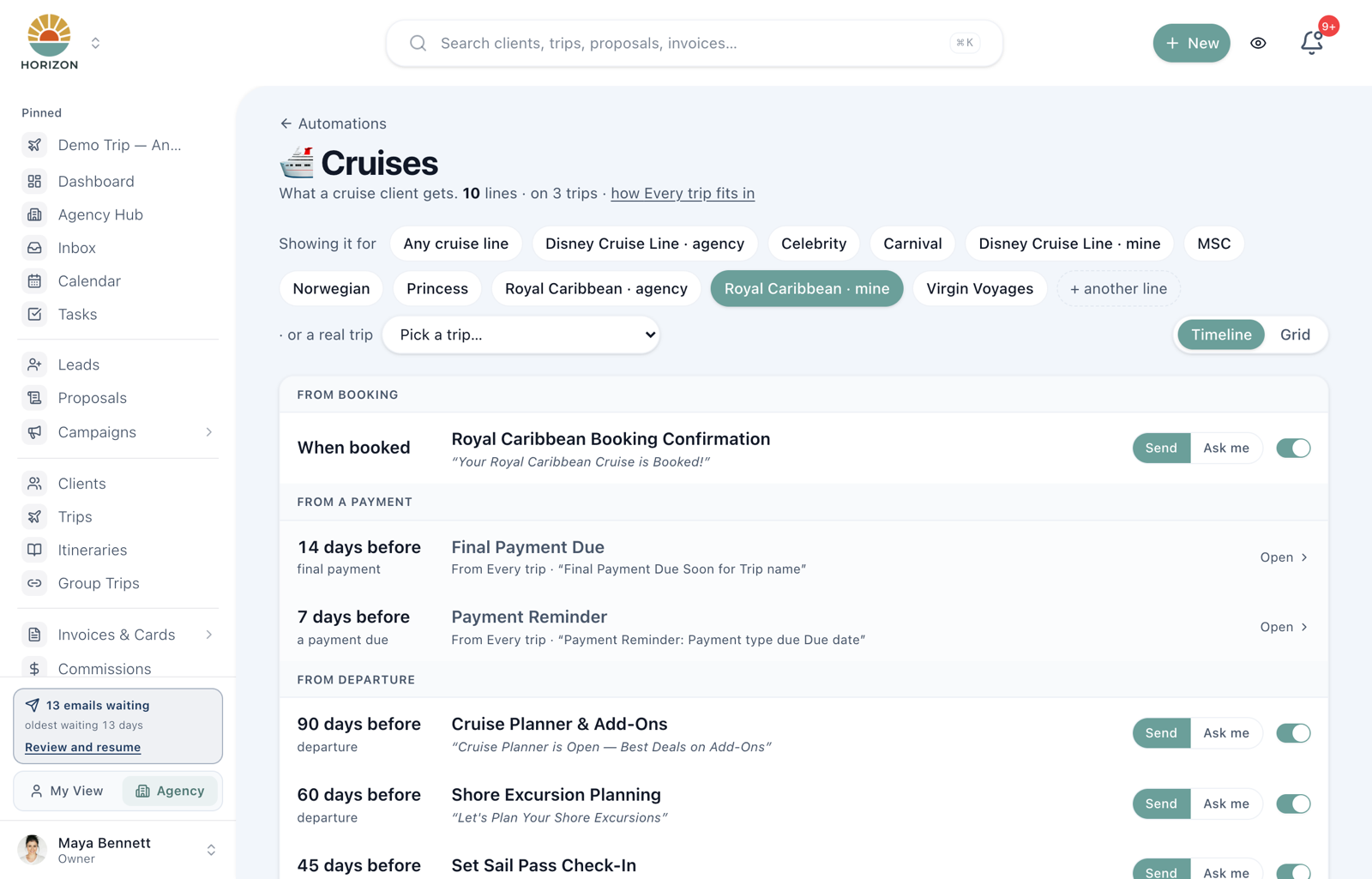
Suppose Sarah books a Royal Caribbean cruise. With the matching automations active, her trip enrolled, and the required dates and booking details in place, her sequence can include:
- a booking confirmation the day it is booked,
- your payment reminders as her deposit and final balance come due,
- a Cruise Planner note 90 days out, a shore excursions nudge at 60,
- her Set Sail Pass reminder the week check-in opens,
- her travel documents and a pre-trip checklist the fortnight before,
- an embarkation guide three days before she sails,
- and a welcome home three days after she is back.
Every one of those emails is yours to read and change. And at any point you can open Sarah's trip and see exactly what she has had, what is waiting on you, and what is still to come.
New here? The Automations page holds your email wording in its Emails tab. Review which automations are active and whether each step sends automatically or asks for approval. Account-level client email settings can also hold or block delivery.
The one idea to understand: layers
Here is what makes this easy to run. You do not write a payment reminder for Royal Caribbean, then another for Disney, then another for Sandals. You write it once.
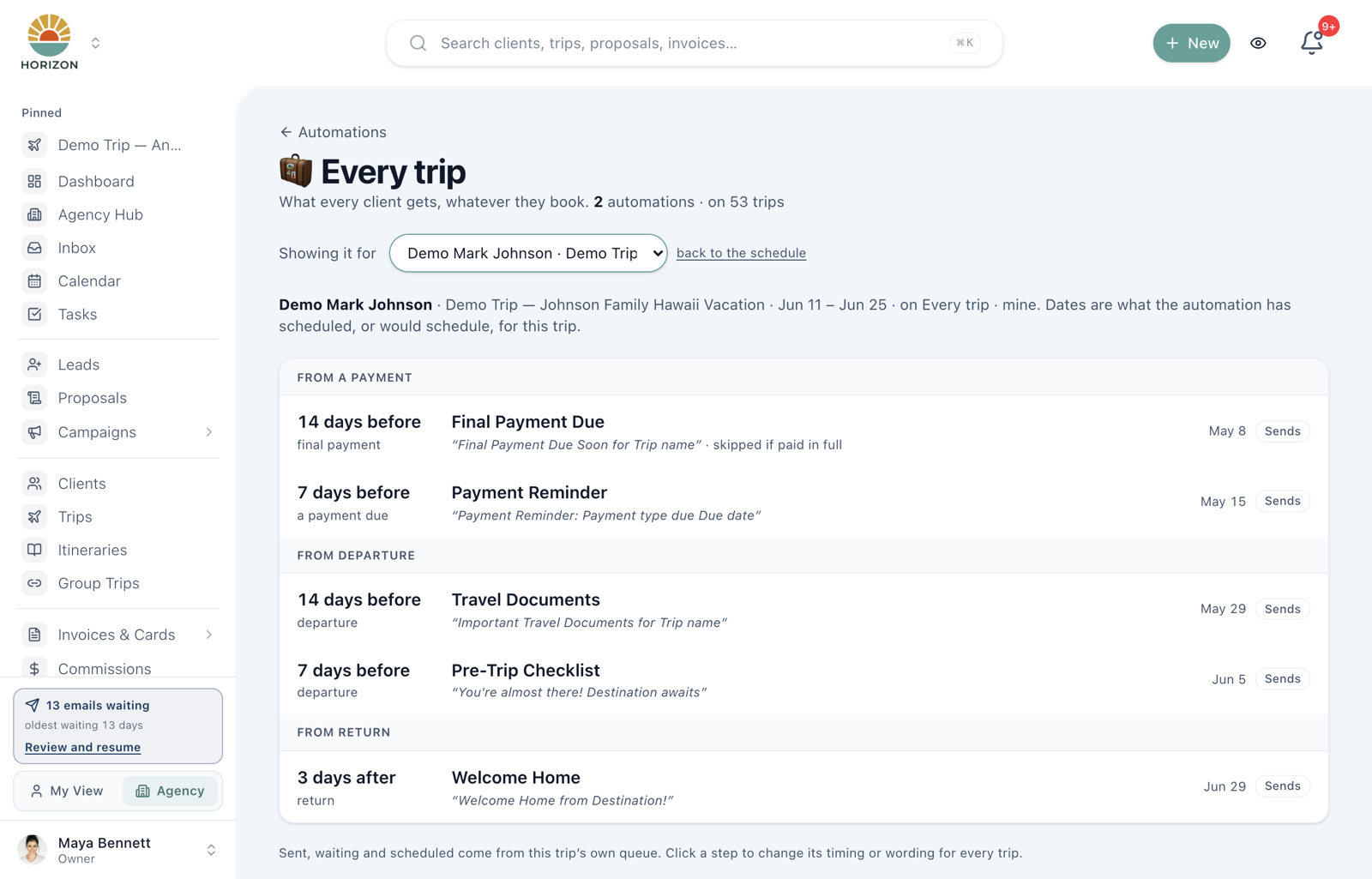
- Every trip is the shared starting layer for enrolled trips, whatever they book. It can cover payment reminders, final payment, travel documents, the pre-trip checklist and welcome home. Check that it is active, the trip is enrolled, and the required dates are present; the name alone does not prove an email is queued.
- A supplier automation sits on top for one kind of trip, and only holds what is different about that supplier. Royal Caribbean's Cruise Planner note. Disney Cruise Line's Castaway Club windows. Walt Disney World's dining strategy.
An enrolled Royal Caribbean trip can use both layers. The following is an example sequence; open the actual trip preview to check your configured timing and queue:
| When | What Sarah gets | Which layer it comes from |
|---|---|---|
| When booked | Royal Caribbean Booking Confirmation | Royal Caribbean |
| 14 days before final payment | Final Payment Due | Every trip |
| 7 days before final payment | Payment Reminder | Every trip |
| 90 days before departure | Cruise Planner & Add-Ons | Royal Caribbean |
| 60 days before departure | Shore Excursion Planning | Royal Caribbean |
| 45 days before departure | Set Sail Pass Check-In | Royal Caribbean |
| 14 days before departure | Travel Documents | Every trip |
| 7 days before departure | Pre-Trip Checklist | Every trip |
| 3 days before departure | Royal Caribbean Embarkation Guide | Royal Caribbean |
| 3 days after return | Royal Caribbean Welcome Home | Royal Caribbean, instead of Every trip's |
Three things fall out of this that make your life simpler:
- Maintain shared wording in one place. Trips using that email can use the updated wording. An advisor’s personal version still takes precedence for that advisor; editing the agency email does not replace personal versions or resend an email already delivered.
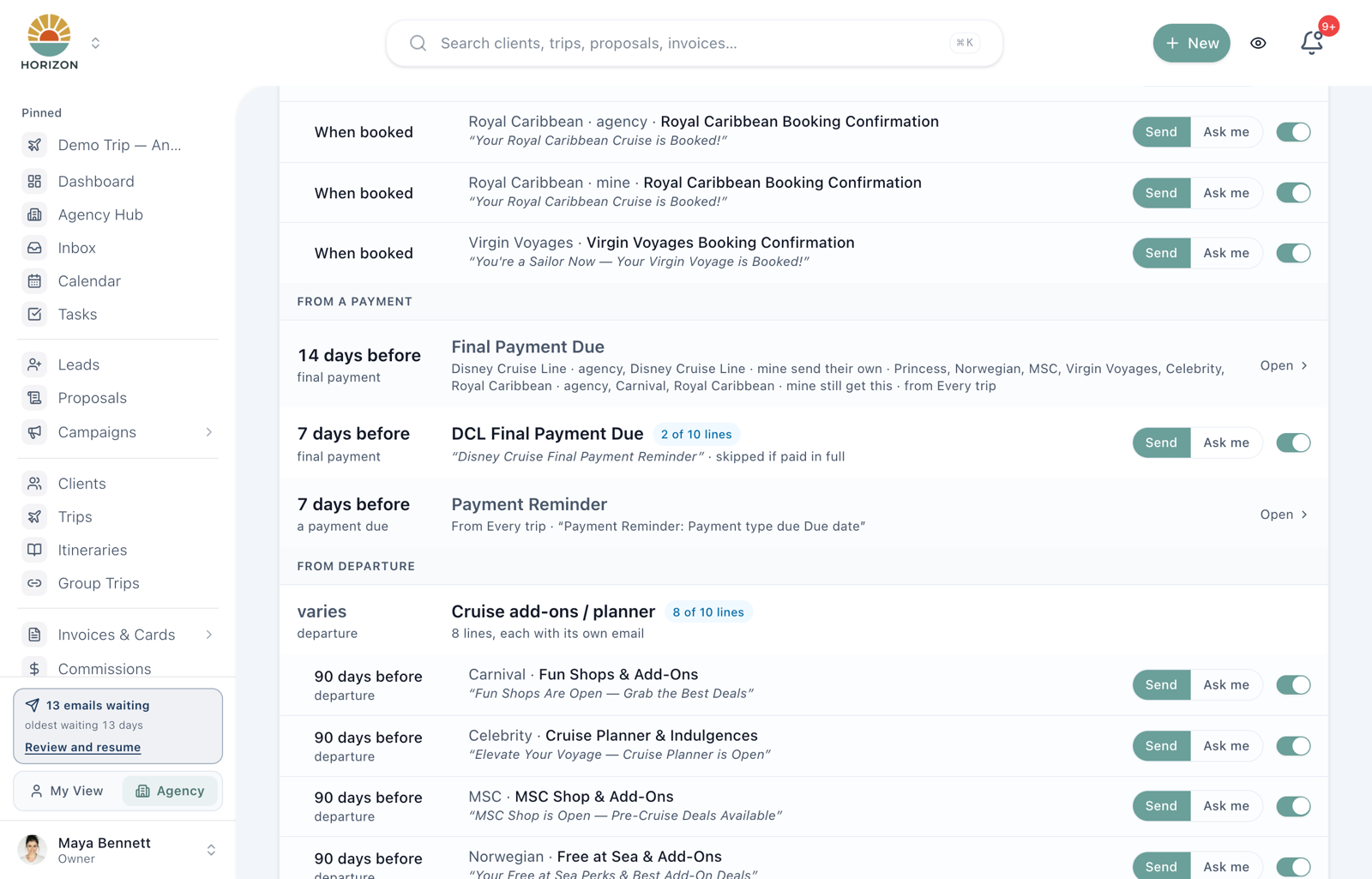
- A supplier can replace a shared milestone. When its step replaces the same milestone, that supplier's version goes out instead of Every trip's. A step set to Send in addition goes out as well: on the timeline it says sent as well as Every trip's, so the client gets both, and Every trip's email stays on the timeline with also sends its own, so its clients get both.
- You never have to copy the universal emails into a supplier. On a supplier's timeline, Every trip's emails show faded with From Every trip. That is the layer showing through, not something missing.
Changing which automation runs on every trip
There is one Every trip for the agency, and each advisor can have one of their own. A trip uses its advisor's own Every trip when they have one, and the agency's otherwise. To give the spot to a different automation, open All automations, press ⋯ on its row and choose Run on every trip. The one that held the spot stops picking up new trips, and trips it is already running on keep going.
If the new one sends fewer emails than the one it replaces, you are asked first: Replace General Journey on every trip? General Journey sends 4 emails on every trip. New Automation sends 1. Press Keep to leave things as they are. This stops a half-built automation from quietly taking over, which would leave new clients with only its one email.
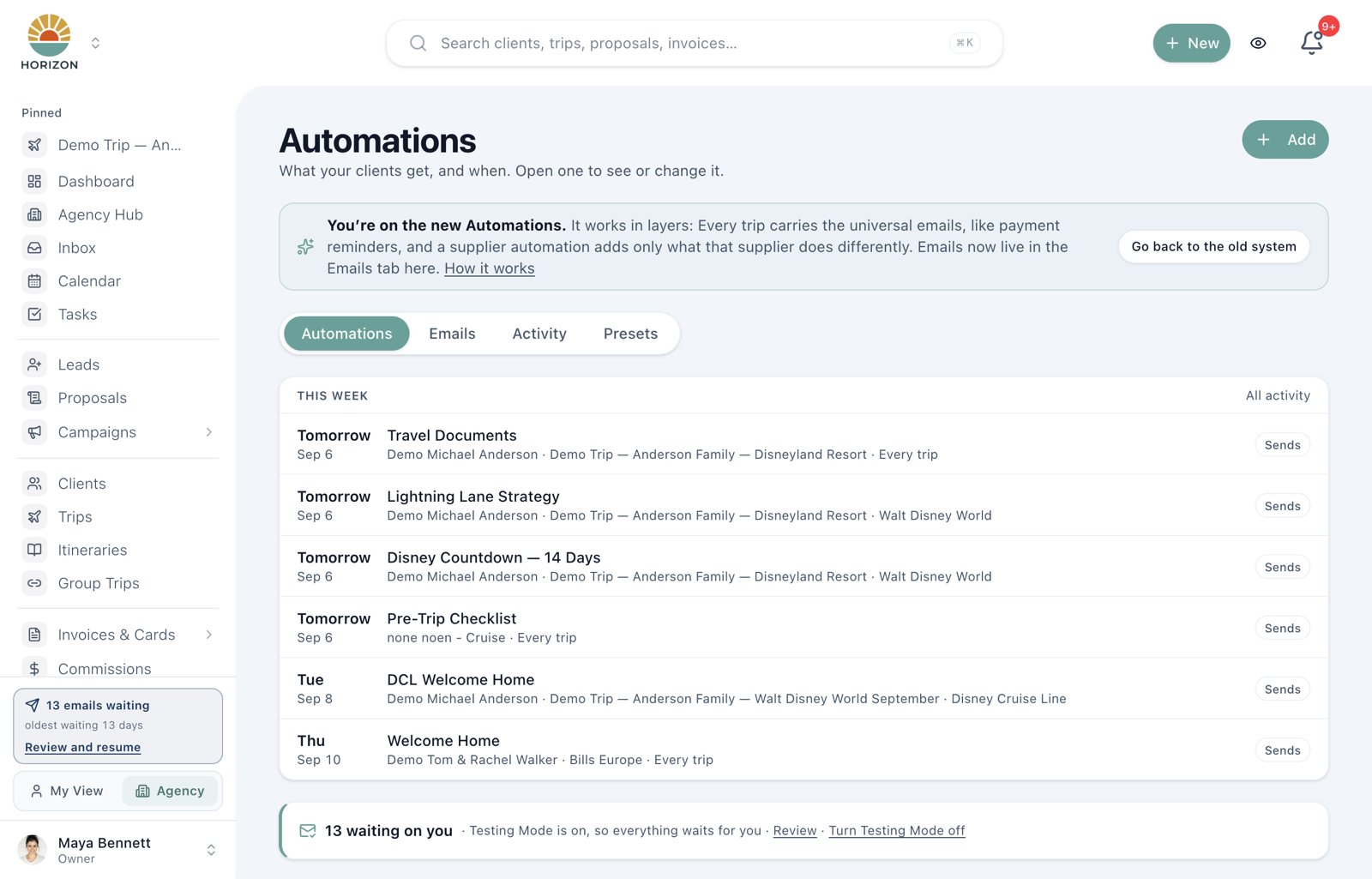
What you see when you open Automations
- This week — upcoming queued items scheduled in the next seven days, with the client and trip where applicable. Booking-wait, paused and switched-off items belong in Activity instead. Scheduled items remain subject to approval and account-level delivery settings.
- Waiting on you — emails held for your approval, oldest first.
- Your automations, in four sections — Trips (Every trip first, then Cruises, Disney parks and the other trip automations you use, plus App notifications), Payments (Payment reminders), Client care, and Leads & proposals (Proposal follow-ups and your lead automations). Each row says what it sends, how many trips it is running on, and when it next sends. The switch on the right turns the whole row on or off.
Along the top: Automations (this overview, or All automations for a plain list), Emails (the wording), Activity (what went out, across every trip), and Presets (ready-made sets to add).
Things you will actually do
"Let me see what my cruise clients get"
Open Cruises. You land on your busiest line's timeline, in trip order: from booking, from a payment, from departure, from return. Each row reads in plain words — 14 days before · departure — with the email's name and the subject line the client will see underneath. Switch lines with the chips under the title, or pick Any cruise line to see them all together; where two lines differ, each gets its own row.
"Did Sarah get her documents?"
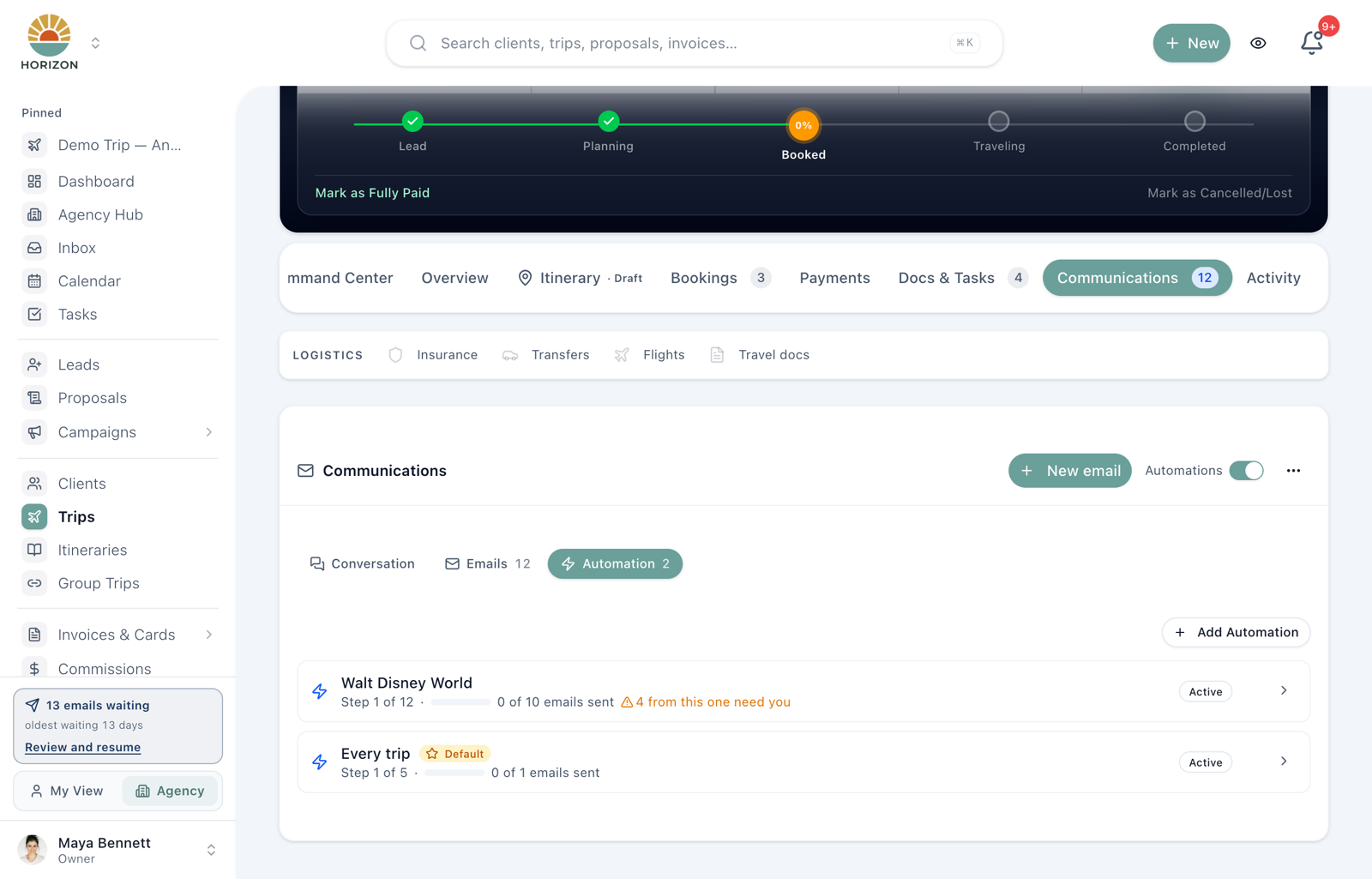
On any timeline, pick her trip from Pick a trip… (Show it for a real trip… on a timeline with a single automation). The same rows turn into dates and states for her: Sent, Waiting on you, Scheduled for a date, Skipped, Failed. Her trip page links straight here too, from Messages → Automation.
Each row says what happened, not just what is planned. Replaced by Walt Disney World: Disney Pre-Arrival Checklist means another automation on her trip sends its own version of that email; the date and state shown are that email's. Expired means it came too late to send (the reason is underneath, such as it was more than two weeks late). Removed from this trip means someone took it off her trip. Paused, Client opted out, Off for this trip and Not sending mean something stops it going out: her trip's automations are paused, she asked not to get automated email, her trip is set to no automations, or the trip is Cancelled/Lost or the automation is switched off. Calculated · not queued means the date is worked out from her trip but no email is queued for that step; when that date has already passed, nothing will be queued for it. Her trip's Messages → Emails list is the record of what she actually gets.
On her trip's Messages → Emails pane, every row also carries one plain sentence under its name saying what happened or what it is waiting for: Sent Aug 22, Written and waiting for you to approve it. Nothing goes out until you do, Waiting on the deposit. It goes out once the deposit is paid, Didn't send: the trip had already departed, Automations are turned off for this trip, so this stays put until that changes. The badge says what state it is in; the sentence says why.
Each email appears once. One held for review says whose Outbox it is waiting in. If an automation email failed, open it and choose Try again. It goes back on the schedule for the date its step has for the trip today, so a welcome-home email that failed months ago waits for the trip to end rather than going out now. It won't resend an email the client already has, and it says why instead when the email is more than two weeks late or when another automation on the trip sends its own version of it (Walt Disney World sends its own version of this email on this trip.); a failure like that shows as history rather than as a failure. An older attempt that a newer copy replaced shows as history (Didn't send in April — a newer copy is scheduled for Oct 3) rather than as a failure, and only failures that still matter turn the trip's banner red.
"I want to change the wording of the payment reminder"
Click the row. The step opens in a panel: When (how many days, before or after), How (Send it for me or Ask me first), To (the client, everyone travelling, or you), and an On / Off switch. The email itself is right underneath — subject, body, header photo, and a preview you can switch to a real upcoming trip so the merge fields fill in. Press Save agency email or Save my email for the wording; the controls above save as you change them. If you close with unsaved wording, choose Keep editing, Discard wording, or Save & close.
For shared wording, the change applies where that agency email is used. Check a real trip preview and remember that personal versions take precedence. Saving wording does not activate a workflow or send a message.
"I already wrote the email. How do I use it on a new step?"
Add a step opens the new step on a blank email so you can start writing straight away. If the email already exists under Emails, press Use a saved email beside The email at the top of the step panel and pick it (you can search by name). The step switches to that email and keeps its timing. The blank one it started with is removed for you, as long as you hadn't typed anything into it.
Only emails set to Automation appear in the list. An email another advisor keeps as Just me can't be used on your steps.
"The step says Needs wording — won't send"
Its email has no subject, or nothing to read under the subject, so it never goes to a client. A new step starts like this. Write the subject and the email (or pick a saved one) and press Save; the label goes away.
Until then the step stays on Ask me first, and Send it for me can't be picked. If one comes due while it's still blank, it waits under Waiting on you. Write the email on the step and the waiting copy uses your new wording. Approve it while it's still blank and it's skipped, not sent.
The same check runs on every automated email as it goes out. Anything with no subject or no wording is skipped, and the trip's email list shows Not sent — this email has no wording yet. Write it on the automation step. A skipped email isn't sent again later, so write the step before its next trips come due.
A supplier or trip-tag step that still needs wording doesn't replace Every trip's version of the same milestone. Your clients get Every trip's email instead, and the timeline keeps Every trip's row with still gets this until its own is written. Once you write it, your version replaces Every trip's on trips from then on. A trip that already has Every trip's email waiting keeps it, so nobody gets both.
"I want every client to get my packing list PDF"
Open the step, and under the email body press Attach file. Whatever you attach goes out with every copy of that email — to the client, to everyone travelling if the step sends to them, and in Send me a test on the automation's settings page, so you can check it arrived. Files can be PDFs, images, Word or Excel, up to 10 MB each and 25 MB together. Remove one with the × beside it and press Save.
If a file can't be read when the email is due, the email is never sent without it. It tries again a few times, and if the file is still unreadable the step shows as failed with a note to re-attach it.
To send the documents already on a trip (confirmations, vouchers) instead of the same file for everyone, put {{documents_list}} in the body. Each client gets a Your documents box with a Download link for every file shared with them. Files you've marked internal, or narrowed to other travelers, are never listed, and when nothing is shared the box doesn't appear at all.
"I want the Travel Documents email to deliver the documents"
It already does. The Travel Documents email lists the trip's shared documents above the portal button. Upload files as Agent only so nothing goes out early, then click the crossed-out eye (Show to client) on each one before the email's date. If you've changed that email's wording, add {{documents_list}} where you want the list.
On the trip, Messages → Emails shows what it will carry under the row: Includes 2 documents, or No documents shared yet when every file is still Agent only.
If you send the documents yourself with New email and From trip docs, JourneyFuse offers Skip that email right after the send, so your client doesn't get a second documents email. Changed your mind? Turn back on is in the row's ⋯ menu.
"I want Disney Cruise clients to get a different final-payment email"
Open Cruises, pick Disney Cruise Line, press More options on any row to reach its settings page, and Add step: choose the Final Payment Due trigger and your Disney email. From then on Disney clients get yours and everyone else keeps Every trip's. The Cruises timeline says so on the row: Disney Cruise Line sends its own · Royal Caribbean still gets this.
Every trip's Final Payment Due and Payment Reminder both count from the trip's final payment date, so they count as one email for replacement: a Disney final-payment email replaces both, and a Disney client gets only Disney's. Within Every trip itself both still go out. Once two automations have each sent a final-payment email to a client, no further one goes out on that trip.
"I want a second version of an automation, with a few emails changed"
Say your Princess automation is written for Alaska and you want a Caribbean version. Open Cruises, pick your Princess line, and press Duplicate at the top right. (It is also in the ⋯ menu on the All automations list and on the automation's own page.)
The copy arrives switched on, with its own copy of every email, and it runs only on the trips you add it to. Nothing picks it up on its own, so it never competes with the original. Editing an email in the copy never changes the original, so rename the copy and reword only the emails that differ.
To use it on a trip:
- Open the trip, go to Messages, then Automation, and click Add Automation.
- Pick the copy. If the original is already on that trip, you are asked whether to Replace it or Keep both. Replace cancels what the original still has scheduled for that trip, and leaves your other trips alone.
Your original keeps starting on its own for every trip of that supplier, so add the copy to each trip that needs it. If you would rather both versions pick up trips by themselves, give each one its own trip tag instead: under Runs on, choose Matching trips, click Advanced, then + tag next to Also require tags, tag both versions, then tick the matching tag on each trip from Tags in the trip banner.
Copy to mine on an agency automation works differently: that copy keeps the agency's rule and emails, and arrives switched off until you review it.
"I'd rather approve an email before it goes"
On the row, press Ask me. That email waits in Waiting on you until you send it. Many advisors run a new automation this way for its first cycle, then switch it to Send it for me once they have seen it go out.
"I've started booking Carnival"
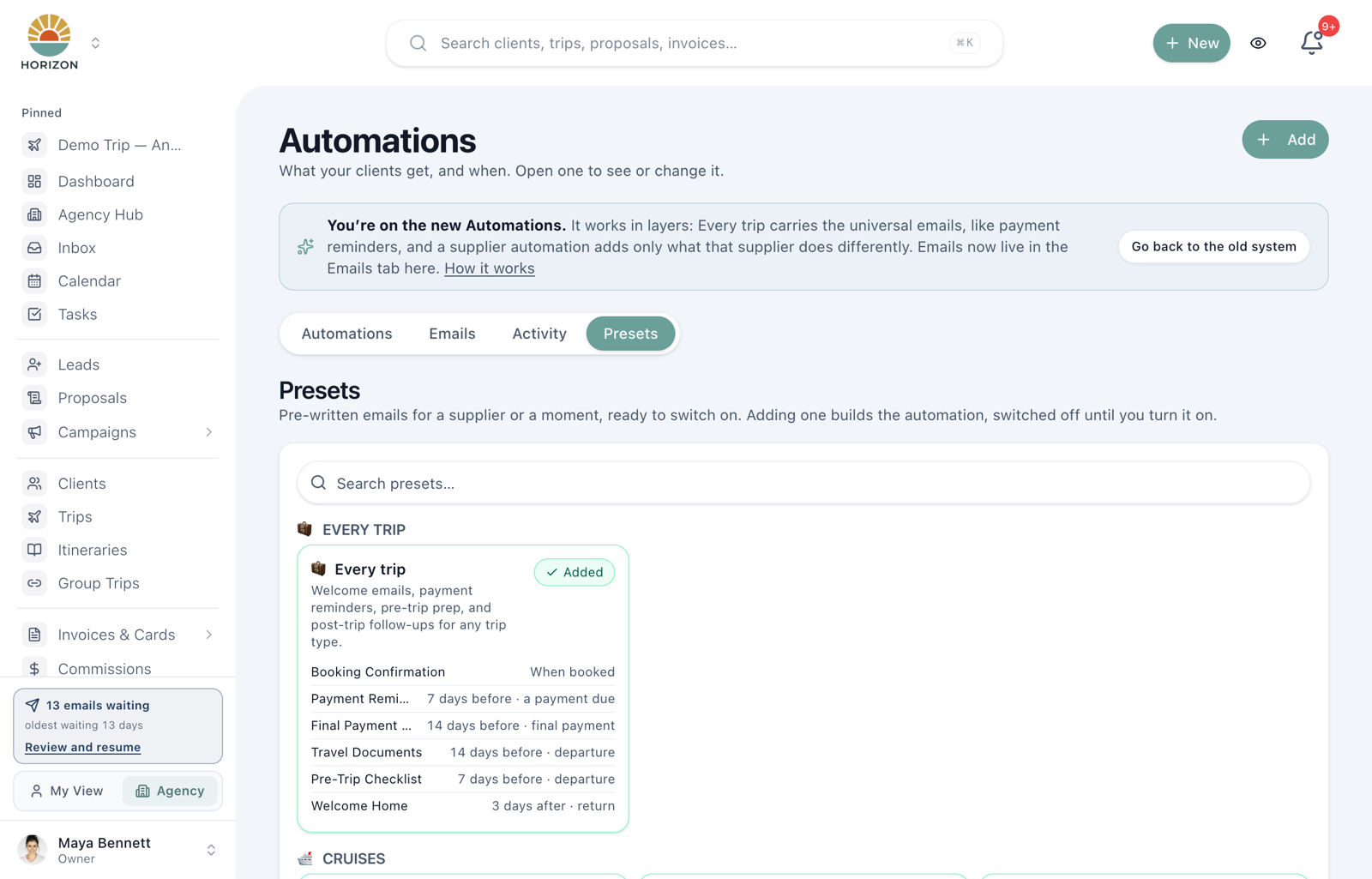
Press Add, or open Presets. Every preset is a card that lists its emails and when each sends. Click Carnival Cruise (or any email on its card) to read the emails first: a panel opens with each one in send order, the subject and the body as the client will see it, with merge fields shown as labelled pills. Add automation sits at the bottom of that panel, and Copy to my templates on any email puts just that wording into your Emails tab if you want it without the automation. Everything you add arrives switched off, so nothing sends by surprise. When you switch it on, it tells you how many upcoming Carnival trips you already have that aren't on it yet and offers to add them in one click. Emails whose date has already passed wait for you to send or skip.
"I never sell Disney parks, can I get rid of those presets?"
Presets are a catalog, not part of your account. Nothing from one reaches your Emails tab, or a client, until you press Add. To take one you'll never use off the list, click Hide at the bottom of its card. It disappears from the Presets tab and from the Add picker, for you only; your teammates still see it.
Changed your mind? The Show 2 hidden presets link at the bottom of the list (the number is however many you've hidden) brings them back, each with an Unhide button. A preset you've already added can't be hidden. To get rid of one of those, remove the automation from the Automations tab (the three-dot menu, then Remove), which also clears its emails if nothing else uses them.
"Remind clients before a held cabin is released"
Holding cabins on a courtesy hold? Open the booking and fill in Hold Expires (date and time) in the payment section — the booking then shows On hold until … under its supplier status. Add the Cabin Hold Expiring preset (under Trips, groups & flights) and every trip with a live hold joins it:
- 24 hours before the hold runs out, the client gets "Your held cabin expires …" — the time comes from
{{hold_expires_at}}, in your agency's time zone — asking them to reply if they want you to secure it. - 6 hours before, you get a task: secure it or release it.
A hold you place before the client says yes counts too: type it into Just for you on the proposal option (see Creating proposals), and the reminders start while the proposal is out — you don't have to wait for a booking to exist. They stop counting it once the proposal is accepted, because the booking carries the hold from then on.
Change either time in the step panel — this trigger counts in hours, not days. Both steps stand down on their own when the hold stops mattering: you clear the date, the booking is deposited or paid (that clears the hold automatically), or it's cancelled. Move the date and the reminders move with it. A hold entered with less than a day left sends straight away rather than waiting. The preset is off until you add it, and your agency's email hold applies like any other automated email.
"Keep in touch with clients between trips"
Open Automations → Client care. These automations run on client profiles, independently of the Every trip and supplier layers. Four ready-written emails are available:
| Default timing | What it needs | |
|---|---|---|
| Client Birthday | On their birthday, each year | Birthday on the client profile or its linked family traveler |
| Happy Anniversary | On their wedding anniversary, each year | Anniversary date on the profile or linked traveler |
| Passport Expiring Soon | 180 days before passport expiration | Passport expiration date on the profile or linked traveler |
| A Year Since Your Trip | One year after a qualifying trip began | The client's most recent completed, booked trip within the past year |
Use + Birthday, + Passport expiring, + Wedding anniversary, or + Travel anniversary for an option you have not added yet. Each loads its email and timing together. Options already covered by an active automation are not added twice.
Clients join automatically when their profile, dates, subscription status and advisor's automation settings qualify. You do not attach Client care to each trip. A family traveler needs their own linked client profile to receive these emails; an email address and birthday on a traveler alone are not enough. The What each event needs section explains the required dates. If Review travelers appears here or on the overview, use it to review that profile gap. View email activity opens the delivery log.
If you skip or discard a birthday, anniversary or passport email for a client, it isn't created again for that occasion. The same goes for one that is paused, waiting for your approval or failed to send: fix or send that one rather than waiting for a new copy. Next year's birthday or anniversary is scheduled as usual, and a passport reminder is rescheduled if you change the passport date.
An owner or admin adding Client care sets it up for the agency; an advisor adds it for their own clients. Emails use the client's own advisor as the sender.
Customize the email and timing
- Click Customize next to the event, or click the email’s name in the Client care timeline.
- Set When, the day offset and At. Default follows the agency send time.
- Choose Send it for me or Ask me first. Timing and delivery controls save automatically.
- Under The email, edit the subject and body, keeping the merge fields you need. Use Preview as to inspect the result, then press Save agency email or Save my email to save wording.
- Read the agency-email notice before editing. A shared agency edit affects the shared wording; Customize for my clients instead starts the personal customization path.
Keep the wording consistent with the timing. If you change the passport reminder from 180 days to another interval, also change “six months” in its subject and body. If you offset the travel-anniversary email, adjust “a year ago today” too.
Adding a Client care step can make it eligible for automatic scheduling. Review its content and delivery mode before relying on it. Ask me first and an account-wide email hold are separate controls; a held account will not send just because a step says Send it for me.
"Send a nurture sequence to people who aren't on a trip"
Tags do this. Build the sequence once, then add the tag to whoever should get it.
The quickest start is a ready-made sequence. Open Presets (or press Add) and look under Leads & nurture:
| Preset | Starts when | Emails |
|---|---|---|
| New lead welcome | a new lead comes in | 5, over two weeks |
| Quote follow-up | you tag a lead Quote sent | 3, on days 2, 5 and 10 |
| Past-client win-back | you tag a client Win-back | 3, over about a month |
| Dream trip nurture | you tag a client Dream trip | 3, over a month |
Click the line under a card to read every email before you add it. Add creates the automation, and the tag it listens for, switched off, so you can reword the emails first. Turn it on when you're happy.
To build your own instead:
- Press Add, then Start from blank. Under Follows, pick Clients (or Leads & forms for leads), then press Create.
- For the first step, pick When a tag is added to a client (for leads, When a tag is added to a lead). Click Add condition and set Tags, equals, and your tag, for example Cancun 2027.
- Add the rest of the emails with the same trigger and a delay: 0 days, then 3 days, then 10 days, and so on. Each delay counts from the moment the tag is added.
- Turn the automation on.
- On the Clients (or Leads) list, tick the people, then use Tag (Add tag on Leads) and pick the tag. Before anything is applied you see what starts, for example Cancun nurture for 200 people. Click Tag and start automation to go ahead, or Cancel.
Each person goes through each step once. Adding the tag again never sends twice, and removing the tag does not cancel emails that are already scheduled. Clients who unsubscribed are skipped when an email goes out.
Stop rules. A nurture automation stops for someone on its own. Under Stop for someone when, tick what should end it:
- They reply to an email: any email from them reaches your Inbox after the sequence starts.
- They become a client: you convert the lead, or move it to Won (leads).
- You mark the lead Lost (leads).
- They book a trip: a new trip is added for them (clients).
When one happens, the rest of their emails and tasks in that automation are skipped and show as Stopped: they replied to you (or whichever rule it was). New lead and client automations start with every rule ticked. Automations built before September 21 start with none ticked, so nothing about them changed. Form automations get the same choices.
How it's doing. Once a step has sent, a line under it shows Sent, Opened, Clicked and Replied. Opened and clicked are shares of emails we could track. Emails sent through your own connected Gmail or Outlook don't report opens, so those steps say Opens not tracked rather than 0%. Replied counts people who emailed you back after that email. Task steps show how many times they ran.
No condition means any tag. A step with no Tags condition starts whenever any tag is added. The confirm shows it, but add the condition anyway.
People on your Contacts (newsletter) list can't be put into an automation. Contacts are for Campaigns. To sequence them, import them as clients or leads instead.
"This lead booked a call, stop the nurture emails"
Open the lead. While an automation still has emails or steps scheduled for them, an Automations running card lists each one with its date and the automation it comes from. Send now sends that email straight away and Skip drops just that one; an email held for your review shows Waiting on you. Recently sent lists what has already gone out.
To stop everything for this lead, click Stop all automations for this lead and confirm. Everything still scheduled for that lead is cancelled, and any automation email waiting for your review in the Outbox is discarded. Emails already sent stay in the lead's history.
This works for lead automations and for automations that start when a form is submitted. It stops the sequence for this one lead only; everyone else in it keeps going.
"This trip shouldn't get any of this"
On the trip, open Messages. The Automations switch at the top pauses everything for that trip. Turn it back on and anything that came due while paused waits for your review instead of sending late.
To say this trip gets no automations at all, clear every automation from the trip's Automations picker when you edit it. Nothing is sent for that trip from then on, including emails that were already scheduled: they show Automations are switched off for this trip, so it was not sent. To change your mind, turn the Automations switch in the trip's Messages back on (or press Resume automations there). Anything that came due meanwhile waits for your review instead of sending late, and an email that was skipped while the trip was off comes back when you choose Turn back on in its ⋯ menu.
For several trips at once, select them on the Trips page and press Automations off. Nothing is sent for them either; their scheduled emails wait. To bring them back, open each trip's Messages and turn its Automations switch back on: anything that came due meanwhile waits for your review. (Resume automations on the Trips page leaves trips set to no automations alone.)
"A client's trip was imported and their automations are off"
Select the trips on the Trips page and press Resume automations. You see a preview first — 3 trips · 12 emails will resume · 4 held for your review — then confirm.
If any emails came due while the trips were paused, the confirm asks what to do with them. Hold them for me (the default) puts them under Waiting on you so you can send or skip each one. Don't send them marks them skipped straight away, which is the quicker choice when your clients already have what those emails say. Neither one sends anything late.
"I resumed my trips and now a pile of old emails is waiting on me"
Anything that came due while a trip was paused is held rather than sent late, unless you chose Don't send them when you resumed. To clear held ones together, go to Automations, open Activity and click Waiting on you. Press Skip all, or tick the ones you want and press Skip selected. You confirm the count first, and nothing you skip is sent. To send one of them instead, click it to open it on its trip and press Send now.
"My Princess automation isn't picking up my imported trips"
A supplier automation matches on the trip's Supplier workflow, not on the name typed on the booking. A cruise you enter by hand fills that in for you, but trips brought over from another system often arrive without one.
On the Trips page, switch to Table, select the trips, and open Supplier workflow:
- Match each trip's booking gives every trip the workflow its own cruise or resort booking points to, so a selection mixing Princess and Holland America trips gets each one right. Use this one first.
- Set all to puts one workflow on every selected trip, for a batch you know is all the same supplier.
- Clear workflow takes it off again and stops the supplier automations it started. Emails already sent are not affected.
You see a preview before anything changes, for example Princess Cruises: 38 trips · Holland America Line: 12 trips. Trips that already have a workflow are left as they are, and so are trips that have finished or been cancelled. Any email that was already past its send date is held on the trip for you to send or skip, never sent late.
"It says can't match a trip yet"
A group is on, but its rule asks for something no trip in your workspace can carry, so it will never enroll anyone however long it stays on. The row says so in red instead of "no trips coming up", tells you why (nothing marks a trip as international yet), and Fix opens the rule so you can point it at trips you actually have. A line inside a group can be in the same state on its own: its chip turns red while its siblings stay green. If more than one group is affected, a line at the top of the list names them.
International and Group can match the corresponding flags on a trip's Messages → Email settings for this trip menu. Set the appropriate flag on trips that should qualify. For any other unmatched rule, inspect the supplier and tag requirements; switching an automation on cannot make an incorrect rule match.
Emails
The Emails tab is every email your automations can send, grouped the same way as the overview. The When column shows where each one is used — 90 days before · departure · Royal Caribbean — because timing lives on the step, not on the email. Click one to edit its wording.
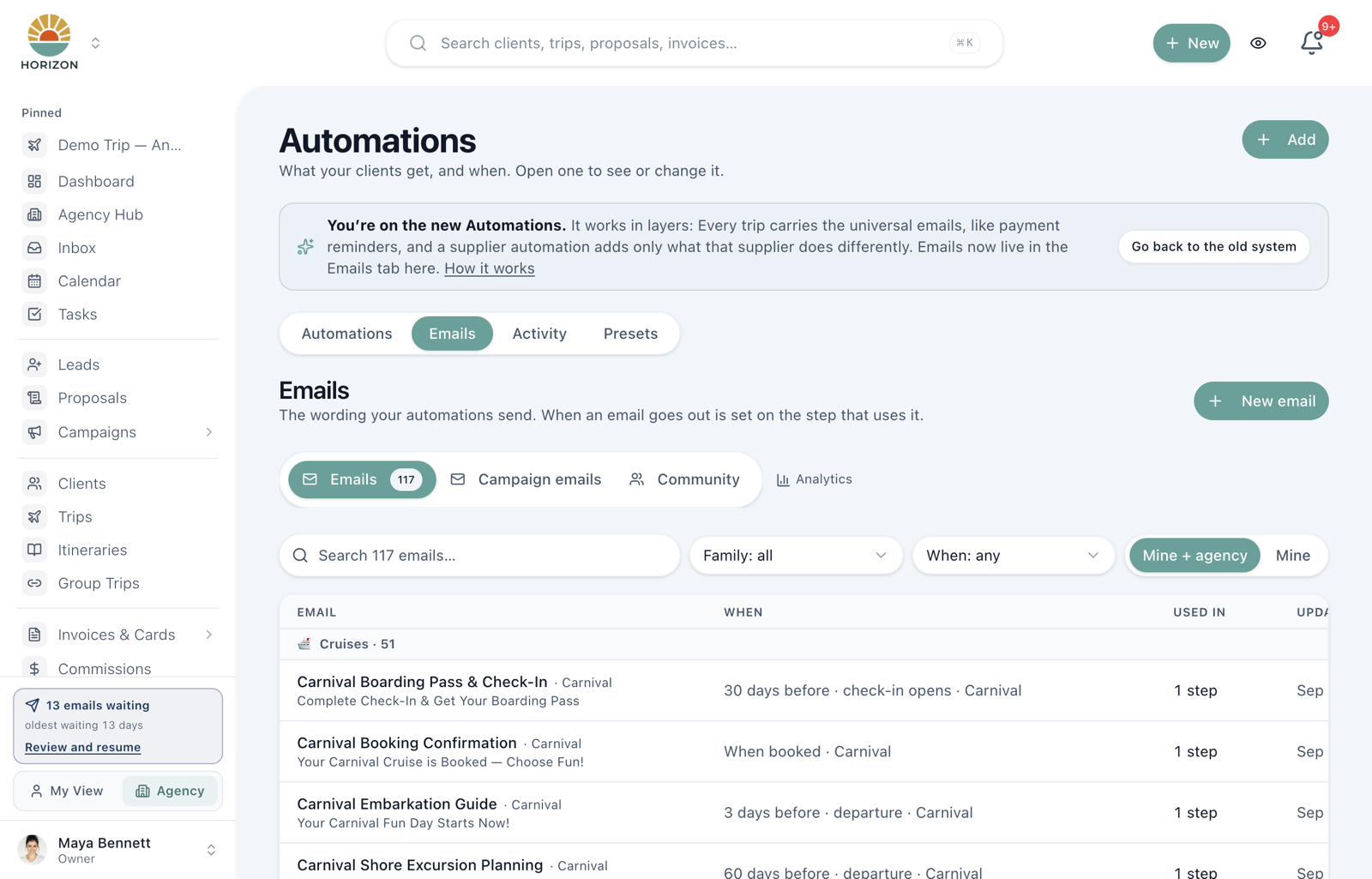
An email only sends when a step uses it. Emails no longer carry their own timing; the old self-scheduling templates were retired on September 17 and moved onto steps.
Folders
The Folders panel beside the list files your emails into nested folders, for example Cruise Lines / Cunard. Filing never changes an email's wording, timing or which steps use it.
- New folder (the folder icon) creates one. Pick Agency to share it with your team or Private to keep it to yourself, and a Parent folder to nest it. Owners and admins start on Agency.
- Move folder puts the open folder under a different parent, or back at the top level. Its subfolders and emails go with it. Agency folders move under Agency folders, Private under Private.
- Write a new email while a folder is open saves the email straight into that folder, and the list stays on it. An email only files into a folder with the same sharing, so a shared email written inside a Private folder is saved unfiled and the app tells you.
- To file emails you already have, tick them and use Move selected, up to 100 at a time.
- Delete folder removes the folder and its subfolders. The emails stay in your library as Unfiled.
If you work in an agency
Your agency can maintain a shared set of automations for its advisors. The participation policy and matching rules determine who uses each workflow; a matching personal automation can take priority. Client emails use the client's own advisor and that advisor's signature. A shared automation being available does not mean every advisor participates or that an email has been sent.
An owner or admin decides, per automation, how much choice each advisor has:
| Advisors setting | What it means |
|---|---|
| Everyone uses it | Advisors cannot opt out of this shared automation. Its matching rules, personal-automation priority and delivery gates still apply. |
| On unless turned off | Runs for everyone unless an advisor chooses Turn off for me. This is the default. |
| Opt in | Runs only for advisors who choose Use it for my trips. |
Open All automations, choose the shared automation, and review Whole agency and the Advisors choices at the top of its settings. These controls save immediately. Just me limits the automation to eligible records assigned to its owner; it does not share the workflow with every advisor.
Copy to mine copies the automation and its steps into a separate personal workflow. It starts switched off. Its schedule no longer follows agency changes, but its steps still link to the agency's email templates. (Duplicating one of your own automations is different: that copy gets its own emails, starts on, and runs only on the trips you add it to.) Use Customize for my clients on an email if its wording also needs to be personal. Once enabled, a personal automation can take priority over the matching agency automation for that advisor's trips; review the Replaces the agency’s indicator rather than assuming both will run.
For example, keep the agency’s Travel Documents step 14 days before departure, but let an advisor personalize its wording. That needs a personal email version, not a second automation.
Review before enabling
Check Runs on, the advisor policy, each step’s When, How and To, and the actual client or trip date. Send it for me still respects the account’s client-email delivery setting. If it is Held for review, inspect the Outbox instead of assuming an active automation sent the message. Ask me first waits for a decision. Timing and step controls save automatically; email wording needs Save.
Use Activity and a real trip’s timeline to separate scheduled dates, waiting items and sent history. A matching rule or calculated date is not proof of delivery. Review the scope of an off switch before using it: agency group, individual step, one advisor or one trip.
Switching things off
- A group's switch (on the overview) turns every automation in it off. It asks first, because anything already scheduled for those trips is cancelled. Where a supplier or tag automation had replaced one of Every trip's emails, Every trip's own version goes back on those trips just after you switch it off — for a busy automation you'll see Putting Every trip's emails back… 40 trips to go — and a date that has passed waits for you instead of sending. Turning it back on restores its cancelled emails that are still ahead, takes over from Every trip's versions again, and offers to add the upcoming trips it matches but isn't on.
- A step's switch turns one email off. Anything it had scheduled is held, not cancelled.
- A trip's Automations switch pauses that trip only. It also stops that trip's payment receipts and the "New Document" email when a file is shared with the client, so nothing automatic reaches that client until you turn it back on.
- Turn off for me (agency automations) stops that one automation on your trips only.
- One client who has asked you to stop emailing them: on their client page, open ⋯ and choose Stop campaigns and automated emails. Campaigns, trip automation emails and birthday, anniversary and passport reminders stop. Payment reminders, balance statements, card authorization requests and emails you send yourself still go out. Their scheduled emails show Opted out on their trips and client page, and a banner at the top of the client page has Turn back on.
Reference
How a trip joins an automation
Each automation's Runs on says which of three ways trips join it:
- Every trip. A trip joins when it is created. There is one for the agency, and each advisor can have their own.
- Matching trips. A trip joins when its Supplier workflow matches the automation's supplier, or it carries the automation's tag. A trip with no supplier workflow runs on Every trip alone. Disney Cruise is the exception: it is also recognised from a booking's ship or supplier name.
- Only trips I add. No trip joins on its own. You put it on the trips you choose: from the trip's Messages tab (Add Automation), from the Automations picker in Edit trip, or from the automation's Trips tab. This is how to work trip by trip, the way a workflow is applied to a trip in Tern. Build an automation from your own emails, choose Only trips I add, then add it to each trip that should get it.
Switching an automation to Only trips I add clears its supplier and tag rule, and asks first. Trips already on it stay on it.
Trips are re-checked when you change their supplier workflow or add a required tag. Steps still ahead queue normally; steps whose date has already passed land under Needs you on the trip for you to send or skip.
Switching an automation on doesn't pull in trips it wasn't already running on by itself. It tells you how many upcoming trips match and aren't on it (for a group, aren't on them), and Add all puts them on in one click. The same button is on the automation's Trips tab as Enroll all. Emails whose dates have passed wait for you rather than sending late. Trips set to no automations and trips marked Cancelled/Lost are never offered, and a personal automation only ever offers your own trips. Trips you removed this automation from by hand are left off too, and the confirmation says how many; they are listed on the Trips tab as removed with Add back, and don't count towards the trips it runs on.
Every action a step can take
A trigger says when. The action says what happens. Most steps send an email, but the step form offers six, under More options → Something other than an email.
| Action | What it does |
|---|---|
| Send Email | Sends the template you pick. The common case. |
| Send Shared Card Link | Emails the trip's already-published shared card link. See the warning below. |
| Create Task | Puts a task on your own list, optionally assigned to a teammate. |
| Add Tag | Tags the trip, usually so another automation can pick it up. |
| Send a Form | Requests a form and tracks it under Waiting on the client. |
| Send Webhook | Posts to a URL you supply, for Zapier, Make and the like. |
A step does exactly one of these. There is no way to attach a card link or a form to an email step, so if you want a reminder and a signing link, that is either two steps or, for payments, the invoice doing the link half on its own.
Send Shared Card Link is narrower than it sounds. It forwards a shared link you have already published on a trip, and it never works out an amount. It is for a group or an event where one link collects from many payers. It is not how you ask one client to authorize their deposit or their balance, and on a trip with no published shared link it pauses instead of sending. For chasing one client's payment, see Final Payment Workflow.
Every trigger you can pick
The step panel covers the common anchors. The settings page's step form offers the full list:
| Group | Triggers |
|---|---|
| Trip | Trip Added, Trip Booked |
| Groups | Group Booking Submitted, Named Traveler Added, Room or Cabin Changed, Supplier Booking Confirmed |
| Payments | Deposit Received, Paid in Full, Deposit Due, Final Payment Due, Final Payment Due (or deposit date if no final date) |
| Holds | Cabin Hold Expiring (counts in hours before the booking's Hold Expires time) |
| Before Departure | X Days Before Departure, 60 / 30 / 14 / 7 / 1 Days Before, 1st of the Month Before Departure, Day of Trip, Departure |
| After Departure | X Days After Departure |
| Before Return | X Days Before Return |
| After Return | X Days After Return, 1 Day After Return, 3 Days After Return, Return, Return (post-trip review) |
| Documents | Passport Expiring, Departure (documents due) |
| Cruise & Disney Timing | Departure (cruise check-in), Disney dining reservations, Disney Lightning Lane, Disney countdowns (30, 14 and 3 days, and the day of) |
| Disney Cruise — Tier-Aware | DCL Port Adventures Window, DCL Palo / Remy Window, DCL Online Check-In Opens |
| Disney Cruise — Fixed Window | DCL Navigator App Setup, DCL Pirate Night Prep |
| Manual | Only When I Send It |
| Form | When a form is submitted |
Final Payment Due (or deposit date if no final date) counts from the trip's final payment date, or from its deposit due date when the trip has no final payment date. It is not tied to each installment on an invoice; installment reminders come from Automations → Payment reminders. Deposit Due counts from the deposit due date.
Client automations use Client Birthday, Passport Expiring, Wedding Anniversary, Travel Anniversary and When a tag is added to a client. Lead automations use When a new lead is created and When a tag is added to a lead.
1st of the Month Before Departure follows the calendar, not a day count. A March 20 sailing sends on February 1, and so does a March 1 or March 31 sailing. Use it for supplier windows that open on the 1st, such as Royal Caribbean show reservations. Pair it with a tag (for example Oasis Class) under Also require tags so it only runs on the ships it applies to. In the step panel it's under More trip & payment events.
Trip Added sends right away, booking or not. Trip Booked waits for the trip's first booking — any booking, at any status — and is dropped if none arrives within 30 days. Want a welcome note a few days after booking? Trip Booked, 3 days after.
Lead triggers. When a new lead is created checks once, as the lead is added. When a tag is added to a lead checks when you apply the tag, so it works for people already on your list. Each lead goes through a step once. When a tag is added to a client works the same way for clients, including a whole list tagged at once from the Clients page. Converting a lead copies its tags onto the new client, so a converted lead can start a client sequence too.
Don't build a whole sequence on Trip Added. +0, +30 and +90 days from the day you made the trip is the same calendar for a booking made a year out and one made three weeks out. Use Trip Added for the booking emails, then the departure and return anchors for the rest.
When in the day emails go out
At the top of the Automations page: Automations send at ___. Pick an hour and your agency's time zone. Trip and client automation steps follow it: documents, welcome-home notes, the payment steps in your trip automations, birthdays. New agencies start at 9:00 AM Eastern.
Payment reminders from Automations → Payment reminders don't follow this setting. They go out in one run early each morning, US time.
One email can differ. Open the step and use the At dropdown next to the day count: leave it on Default to follow the agency setting, or pick an hour for that email alone.
Cabin Hold Expiring has no At dropdown either — "24 hours before a 3:00 PM hold" is already 3:00 PM the day before, so it goes out on that hour's sweep.
Trip Added and Trip Booked have no At dropdown, on purpose. They don't wait for a date on the calendar — they fire when the trip is created or the first booking lands — so there is no day to put a time on. A booking confirmation should arrive when the booking happens, not the next morning.
Two things worth knowing. The time is yours, not the client's: 9:00 AM means 9:00 AM where you are, and a client two zones over gets it at their own local equivalent — sending in each client's own morning is not something we do yet. And emails leave on the hour, so minutes aren't an option.
Changing the agency time applies from that moment on. Anything already scheduled keeps the time it was given, and picks the new one up if the trip's dates change.
Disney Cruise Line: Castaway Club windows
Disney Cruise automations time their booking-window emails to each guest's Castaway Club tier, read from the trip:
| Trigger | First-Time | Silver | Gold | Platinum | Pearl |
|---|---|---|---|---|---|
| Port Adventures Window | 75 | 90 | 105 | 120 | 123 |
| Palo / Remy Window | 75 | 90 | 105 | 120 | 123 |
| Online Check-In Opens | 30 | 33 | 35 | 38 | 40 |
Days before sailing. Concierge staterooms get a wider Port Adventures window. Navigator App Setup (about 150 days) and Pirate Night Prep (about 14) are the same for every tier. The emails address the guest's own tier with {{castaway_tier}}, {{port_adventures_window_date}} and {{online_checkin_window_date}}.
Skip conditions
Open a step and use Unless: Paid in full, Deposit paid, Traveler info complete, Passport on file, Insurance purchased. Checked on the day the email is due, so a trip insured three weeks in still skips the reminder. Presets set the payment reminders to skip when paid; add conditions to your own steps yourself.
Merge fields
Emails fill in from the trip when they send. Use the pills under the subject line or the Merge Fields button in the editor.
| Category | Examples |
|---|---|
| Client | {{client_name}}, {{client_first_name}}, {{client_email}} |
| Trip | {{trip_name}}, {{destination}}, {{start_date}}, {{end_date}}, {{total_price}} |
| Payment | {{payment_type}}, {{amount}}, {{due_date}}, {{final_payment_amount}}, {{invoice_link}} |
| Booking | {{booking_supplier}}, {{booking_confirmation}}, {{hold_expires_at}} |
| Agent | {{agent_name}}, {{agent_email}}, {{agent_phone}} |
| Links | {{portal_url}}, {{documents_list}} |
The full list, with what each one fills in, is in Email merge tags.
Editing a reusable automation or one trip
Opening a step from a timeline edits the reusable automation, even when you selected a real trip to preview. Timing and controls save automatically. Changing when it sends, what time, or who it goes to also updates the emails already scheduled on trips, and the confirmation says how many moved. Dates you moved by hand on a trip stay put. Use Save for email wording; an email used by several steps can affect those steps too. Read the editor’s scope notice before changing it. If you need your own wording, press Customize for my clients instead in the email panel. Add a step is hidden while a real trip is selected; go back to the schedule to add one.
For one trip’s emails, use Manage emails for this trip, or open the trip and go to Messages → Emails. Each row's ⋯ menu works on that trip only:
- Reschedule moves this one send. The new date stays put when the trip's dates or the step's timing change, until you choose Reset to schedule.
- Skip this email stops it for this trip; Turn back on undoes that.
- Edit for every trip opens the step itself, which changes it everywhere.
Remove on an automation in the trip's Automation pane takes it off this trip only and cancels the emails it still had scheduled. It stays off for this trip, even if the trip's tags or suppliers change later. Add it back any time from Add automation (or Add back on the automation's Trips tab), which schedules its emails again.
Milestones and layers
The Milestone control (trip automations only) says what a step is for, such as a booking confirmation or the final-payment reminder. When two automations on the same trip send the same milestone to the same person, the client gets one: a supplier or trip-tag step replaces Every trip's, and once one version has gone out the others are dropped. A line's final-payment email replaces both of Every trip's final-payment emails, its Final Payment Due and its Payment Reminder. Tick Send in addition on a step to send it alongside instead; the timeline then shows both.
Unique step means the step has no milestone and always sends: it never replaces another automation's email, and nothing replaces it. Saving or swapping its email never turns it into a milestone. A step with no milestone chosen shows No milestone: it replaces nothing and nothing replaces it. If its email is named after a milestone (a "Welcome Home" email), it shows Matched by the email's name (Welcome home) instead and counts as that milestone; choose Unique step if it should always send.
When you skip one of these emails for a trip (Skip this email, Skip all or Skip selected under Waiting on you, Don't send them when you resume automations, declining an Ask me first email, discarding it from the Outbox, or removing it from the trip's list), your answer holds for that milestone: if another automation's copy of it turns up on the trip later, it is dropped instead of sent. The automation you skipped it in carries on with its next, different email, and a copy that was already on the trip when you skipped stays as it was. An email waiting for your approval (Ask me first) counts as scheduled, so it is never replaced by a lower-priority automation's copy.
A milestone change applies to trips as they are next scheduled or re-checked (a booking, payment or date change). Emails already queued keep the decision made when they were queued.
The Unless button also displays rules inherited from the email. Removing your additional conditions does not remove an inherited rule, such as stopping payment reminders once the trip is paid in full.
Comparing payment dates
Select a real trip, then open Compare payment dates and invoice reminders. Trip steps use the trip’s deposit or final-payment date. Invoice reminders use the individual payment’s due date and any invoice-specific reminder schedule. These dates can differ.
The preview labels calculated reminder dates separately from actual email activity and explains paid, paused or draft-invoice states. At send time, a trip automation's payment email to the client or their travel party is skipped when an invoice payment reminder for that trip went out in the previous seven days, or goes out on its own in the next seven days (a day set to Ask me first doesn't count). Further apart than that, the client gets both. An email you send with Send now, or approve, always goes. A card authorization alone does not prove payment was received.
Scheduled describes a queue entry, not a guarantee of delivery: sending rules are checked again when due. Waiting on you means an Outbox review is needed; it is different from a failed delivery. Lead automation counts show how many different leads have ever been enrolled, not how many steps are scheduled.
Related Articles
Inbox & Messaging
View and manage all client communications — emails, portal messages, and trip conversations — in one place.
Organizing Your Emails
Find and file automation emails in Automations → Emails: Family and When filters, folders, and categories you name yourself.
Sending Emails
Compose and send emails to clients from your JourneyFuse inbox with rich formatting, images, and thread history.