Commission Reconciliation
Last updated September 25, 2026
Reconciliation lives in Commissions → Inbox. The Inbox separates Unmatched payments, Pending submissions, Variance flags, Awaiting supplier, and Needs filing so each kind of work has a clear next step.
Reconciliation is the process of matching incoming supplier payments to the commissions your advisors and bookings say the agency should receive. It is the bridge between "the supplier paid us" and "we can pay the advisor."
This guide is for agency owners and admins working in Agency view. Solo agents filing through an external host do not use this workflow — see Commissions Workflows by Role for the right guide for your setup.
Video walkthrough
Prefer to watch? This ~10-minute walkthrough for agency owners covers the whole flow: how JourneyFuse auto-matches a supplier deposit, a clean match, a short-pay you close out, a commission paid in installments, one check split across several advisors, filing a deposit with no booking, and importing supplier statements. ▶️ Watch on YouTube
Where to Find It
- Switch to Agency view using the toggle at the bottom left of the app
- Go to Commissions
- Open Inbox
- Start with Unmatched payments
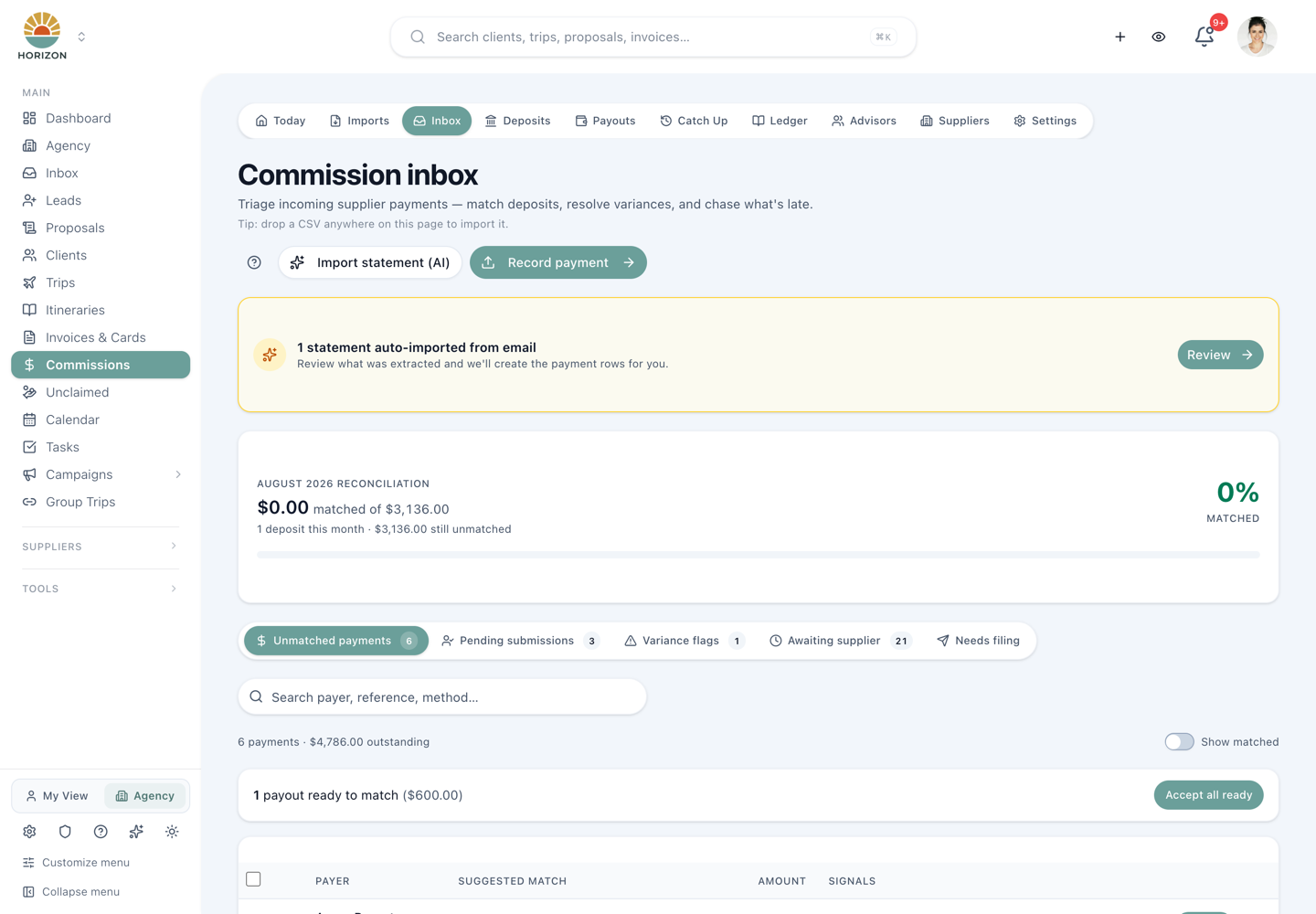
Read the suggestion before accepting it
A strong suggestion names the client and trip and shows the signals that support the match. Those signals may include Advisor, Ref, Amt, Guest, Date, and Travel.
Use Accept when the payment and commission clearly belong together. Accept all ready is the fast path for a group of clean suggestions, but it still deserves a quick review before you click.
Use Review when JourneyFuse cannot find a trustworthy booking. The panel may let you correct the payer, record an advisor's direct booking, or open the full matching view. Leaving money unmatched is safer than attaching it to the wrong trip.
Handle a difference without hiding it
Variance flags compares what the agency expected with what the supplier actually paid. For example, if the agency expected $1,500 and received $1,450, the $50 gap stays visible.
Choose Compare to inspect the records. Use Close at $1,450 only after you have confirmed that the supplier's payment is final and the agency accepts the difference. If the supplier still owes the balance, leave the flag open while you follow up.
Send a line back to the advisor when it might not be theirs
Sometimes a statement line lands on a claim that's probably a different booking: another traveler in the same family, a different reservation number, or a different advisor on the statement. Don't guess. Open the line and choose Send back to Ashley (the choice carries the advisor's first name). It sits among the other choices on both Imports and the Inbox, whenever the line matches a claim an advisor filed. The full match page has an Ask Ashley to check button too.
Choosing it opens the email underneath, ready to edit. It opens with what arrived ("We received an Allianz payment for Julio A Victoria, reservation E2591804877, $62.00") and what they filed, then shows a Your submission / The statement says table with the differences highlighted, the supplier's number guidance, and a Review your submission button. The table is filled in from the claim and the statement when the email sends. Nothing about the claim or its money changes. On Imports the payment is recorded unmatched, so the money waits in the Inbox.
After you press Process, the line moves to Waiting on advisors at the bottom of the statement. If the advisor hasn't answered, a reminder goes every 3 days, up to 3 times. The button opens that exact claim: Lite advisors land on it in their portal, and everyone else in the full app. They press Yes, it's correct or Edit and resubmit, and you get a bell. The line then comes back to the top of the statement:
- Asked Ashley · Sep 25 · reminded 1× · waiting: no answer yet.
- Ashley confirmed: they say the claim is right as filed.
- Ashley updated · now matches (or still differs): they edited the claim, and the Inbox has matched it again. If your agency reviews claims by hand, the edited claim waits in Advisor claims for your approval first.
When a supplier pays less than the advisor filed
The recommended choice is Pay $1,105.60 now and tell Jonathan. The advisor is paid what arrived on the next payout. They get a short note: what the supplier paid, what they filed, a few common reasons an amount comes in lower (a claim worked out on the total with taxes, parts of a booking that pay separately after travel, a different commission rate), and "If more is paid on this booking later, we'll add it to your next payout automatically." You can pick a different reply or edit it before Process.
When the statement says the rest is coming, the line sits under Rest still to come. Virgin Voyages, for example, pays the voyage fare commission first and the pre-voyage and onboard part later, under the same booking number. The note then says when the remaining amount is scheduled, or that it comes after travel.
When the rest arrives, the Inbox shows it under Rest of a claim paid earlier, with Add to Jonathan's payout already chosen. It becomes a top-up for the same advisor at their usual split. The first payment is never reopened, even if it has already been paid out, and a top-up can never take a claim past what the advisor filed.
When a statement doesn't add up
Each statement in Match payments shows how much of its printed total has been placed on commissions, and how long it has been waiting. After 14 days the age turns amber, and the oldest statements sit near the top.
If a statement's lines add up to less than the total the supplier printed, it appears in a Statement doesn't add up card at the top of Match payments. Gaps smaller than a typical card fee (3.5%) don't count. Choose one answer:
- Add the missing line creates a line for the difference so you can match it like any other.
- It's a supplier fee closes the statement and records the difference as the supplier's fee.
- The total was misread corrects the statement total to what its lines add up to.
When a payment is short
When you apply a payment that leaves a booking short of what was expected, JourneyFuse asks Is more coming?
- More is coming keeps the rest open for the supplier's next payment.
- That's the final amount closes the commission at what arrived, and the advisor is paid on that amount.
The Big Picture
Commission entries move through a lifecycle as they are processed:
| Stage | What It Means |
|---|---|
| Expected | Commission amount is estimated from the booking — trip hasn't ended yet |
| Submitted | Agent has submitted the commission through JourneyFuse |
| Received | Supplier payment has been recorded and matched, but not yet finalized |
| Reconciled | Used for non-payable items after payment acceptance, or as a bookkeeping checkpoint |
| Agent Payable | Ready to be included in an agent payout |
| Agent Paid | Payout to the agent is complete |
Reconciliation moves commissions from Submitted → Received. Accepting the supplier payment is what moves matched commissions into Agent Payable.
The 5-Step Owner Mental Model
If you are an owner or admin, the easiest way to think about the workflow is:
- Submitted — the advisor filed the commission and it was approved for processing
- Matched — you recorded supplier cash and matched it to the booking
- Accepted — you finalized that supplier payment
- Payable — the advisor portion is now released for payout
- Paid — you recorded the advisor payout batch
JourneyFuse now mirrors those same steps in the Agency commissions table so the wording stays consistent between the UI and the KB.
Real Scenario Example
Use this simple example as a model:
- Gross commission from supplier: $100
- Advisor split: 70%
- Advisor earns: $70
- Agency keeps: $30
Inside JourneyFuse, the owner workflow looks like this:
- The advisor submits the commission after the trip
- The owner approves it for processing
- The supplier sends the agency $100
- The owner records that supplier payment and matches it to the commission
- The commission moves to Matched
- The owner accepts the supplier payment
- JourneyFuse sets the advisor's $70 to Payable
- If payout rules apply, JourneyFuse also sets an eligible payout date
- The owner creates a payout batch and records the advisor's $70 payment
- The agency keeps the remaining $30
If the agency has a rule like "hold payouts until trip end," JourneyFuse uses that rule when the supplier payment is accepted so the owner can see exactly when the advisor portion becomes eligible.
What the Advisor Sees After Payout
When the owner creates the payout batch, they can also send a payout summary email to the advisor.
Using the same example:
- Supplier paid the agency: $100
- Advisor share: $70
- Agency share: $30
The advisor's payout email can include:
- payout date
- payment method and reference
- the trip or booking included
- the advisor amount paid
- any bonus or deduction adjustments
- the total paid in that batch
That gives the owner a simple way to answer, "What was this payment for?" without adding extra accounting complexity to the workflow.
Step-by-Step: Recording a Supplier Payment
When a supplier deposit hits your bank account, you need to record it in JourneyFuse so it can be matched to commission entries.
Paper checks and statements that didn't come by email
From Commissions → Inbox, click Add a check or statement. Enter the supplier, the check's total, the date you received it and how it was paid. JourneyFuse lists what that supplier still owes you, overdue first. Tick each commission the check pays and adjust any amount.
A bar shows how much of the total you've placed. Balanced means every dollar is accounted for. Money you haven't placed yet waits in the Inbox to match later. If the lines add up to more than the total, you can't save until you fix a line or the total. The whole check is saved as one payment, so it matches the single deposit on your bank statement.
1. Record the Payment
For a single payment, click Record a single payment instead on that screen. Choose the payer and fill in:
| Field | Description |
|---|---|
| Deposit Amount | The total amount that hit your bank account |
| Payment Date | The date on the supplier's payment or check |
| Deposit Date (optional) | The date the funds cleared your bank |
| Payment Method (optional) | Check, ACH, wire, credit card, etc. |
| Reference Number (optional) | Check number, transaction ID, or supplier reference |
| Notes (optional) | Any context about the payment |
Click Save to create the supplier payment record.
One currency per agency. JourneyFuse tracks all commission amounts in your agency's configured currency (set in Settings → Commissions) and does not convert between currencies. Recording a payment — or confirming an imported statement — in any other currency is rejected with a message telling you which currency was detected. If a supplier pays you in a different currency, convert the amounts to your agency currency before recording them. This keeps dashboard totals, payout batches, and 1099 figures accurate.
2. Match Commissions to the Payment
After recording the payment, JourneyFuse shows you a list of approved commission entries for that payer. These are the commissions that are ready to move from Submitted to Matched. Each entry displays:
- Trip name, supplier, and booking type
- Confirmation/reservation number
- Gross commission amount (expected)
- Trip end date and expected payment date
Smart matching: JourneyFuse scores each entry based on how likely it is to match this payment — considering trip timing, expected dates, submission status, and amount proximity. Entries with the highest match confidence appear first with a "suggested" indicator.
For each commission entry, you can:
- Check the box to include it in this reconciliation
- Enter the actual amount received if it differs from the expected amount
- Add a note for context on any discrepancy
Already marked received? Entries you already marked received by hand show a green Supplier Paid badge and are still matchable. Matching one simply links this deposit to it — recording which supplier payment paid that commission — without rewinding its stage, rewriting its amounts, or clearing a flag. This is how a deposit for a booking you'd already marked received gets connected to the actual cash instead of looking orphaned.
3. Review Variances
As you match entries, the reconciliation view tracks three running totals:
| Total | What It Shows |
|---|---|
| Deposit Amount | What the supplier paid |
| Total Expected | Sum of expected amounts for selected entries |
| Variance | The difference — positive means overpaid, negative means underpaid |
If the actual amount for an entry differs from what was expected, you choose a variance action:
- Accepted — the variance is within tolerance and you're okay with it (e.g., rounding differences, currency adjustments)
- Flagged — the variance needs follow-up (e.g., supplier paid less than expected, missing a booking)
Flagged entries appear in the Exceptions view for later investigation. You can also clear a flag wherever you spot it: from the Inbox, or by opening the entry in the Ledger and using Resolve variance in its detail drawer — pick a reason (supplier underpaid, expected was wrong, etc.) and the flag is cleared with a note added to the entry's history.
3b. Adjustments — write-offs, FX differences, fees
Sometimes the gap between expected and received doesn't map to a specific commission line — the supplier shorted you by $50 across the board, the wire transfer fee ate $20, or you've decided to write off a small unrecoverable balance. The Adjustments panel on the match page handles these cleanly:
- Click Add adjustment on the reconciliation page.
- Pick a type: Supplier short-pay, Supplier recall, Supplier overpayment, Exchange rate, Write-off, Bank / wire fee, or Other.
- Enter the amount as a positive number and a description so the team understands what happened. The type picks a sensible direction (Accounts for part of the deposit or Records a shortfall), and the preview shows the Unmatched balance before and after.
- Save.
A recall netted out of a check. When a supplier takes back commission it paid earlier and deducts it from this check, the check arrives smaller than the lines it pays. Match the positive lines as usual. Do not type the recall as a negative amount on a booking: the match page refuses that and points you here. The deposit then shows as over-accounted by the recall, and the banner offers Record $X recall, which fills in a Supplier recall adjustment for exactly that amount.
Adjustments stay attached to the deposit — so the audit trail is intact and the running total of adjustments offsets the "Remaining" balance you're trying to zero out. You can have multiple adjustments per deposit (a short-pay plus a wire fee, for example).
4. Create the Reconciliation
Once you've selected all matching entries and resolved variances, click Reconcile. This:
- Creates a reconciliation batch record with the totals and entry count
- Updates each matched commission's lifecycle to Received
- Records the variance amounts per entry
- Links each commission entry to the supplier payment via an allocation record
At this point, the commissions are matched to cash in, but they are not yet payable to the agent until you explicitly accept the supplier payment. In the owner mental model, this is the move from Matched to Accepted.
Handling Adjustments
Sometimes a supplier payment doesn't perfectly line up with commission entries. JourneyFuse provides tools for these situations.
Company Adjustments
If the supplier included or deducted something that isn't tied to a specific commission entry (e.g., a processing fee, bonus, or credit memo), add a company adjustment:
- On the payment detail view, click Add Adjustment
- Enter the amount (positive for additional credit, negative for deductions)
- Add a description (e.g., "Q4 bonus" or "Wire fee")
Adjustments update the payment's matched and variance totals automatically.
Filing a deposit as unclaimed
If a supplier deposit doesn't match any commission entry in JourneyFuse — maybe it's for a booking you haven't entered yet, a park-ticket commission with no booking line, or a commission from a different system — you can file it as unclaimed right from the match screen so it leaves the Unmatched queue:
- When the payer has no matching open commissions, the empty state offers File this deposit as unclaimed.
- When there are candidate entries but none is the right booking, use None fit — file as unclaimed below the list.
Then enter the booking/reference number and amount received (a trip description and notes are optional). The unclaimed amount counts toward the deposit's accounted total, so the payment clears out of your inbox. You can resolve it later once the matching commission exists, or void it if it was a mistake.
One line of a check that no booking accounts for
A check often pays several bookings, and one of them was never entered. Match the lines you can, then look at the Adjustments panel. When part of the deposit is still unmatched it offers:
- File as unclaimed — enter the amount, booking number and guest or advisor. It lands on your advisors' Unclaimed page so the right advisor can claim it.
- Keep with agency — for money the agency keeps and does not pay out, for example when an advisor never entered the booking. Add a reason. It is recorded on the deposit as a write-off in one step and never appears on anyone's Unclaimed page, so nobody can claim it.
Both accept part of the remaining amount, so you can split a remainder between them.
Editing Allocations
If you realize an allocation amount was entered wrong after creating the reconciliation, you can update individual allocation amounts from the payment detail view. Click the allocation row and adjust the amount — the payment's matched and variance totals recalculate automatically.
Undoing a wrong match
Auto-matching is a suggestion, not a commitment. If a payment landed on the wrong booking — a common one is importing statements before the matching bookings exist, so the matcher pairs a line with the closest thing it can see — you can take it back off and re-point it.
- Go to Commissions → Inbox and turn on the Show matched toggle above the list. Matched deposits are hidden by default, which is usually why a payment you already approved seems to have vanished.
- Click Review on the payment to open the match screen.
- Each allocated row carries an Unallocate link at the right-hand end of the row. Click it and confirm.
The commission goes straight back to pending and the deposit's unmatched balance goes back up by that amount, so nothing is lost and nothing is double-counted. Then find the right booking using the Search by trip, client, confirmation, or supplier box above the candidate list (there are amount, advisor and expected-date filters beside it), tick it, and Save reconciliation.
Nothing to re-run. The suggestion list is rebuilt every time you open the match screen. If a statement matched badly because the bookings weren't in JourneyFuse yet, simply adding those bookings is enough — reopen the payment and the right candidates are there. On a statement still sitting in Imports, Re-run extraction in the edit drawer redoes the matching as well as the reading.
Prefer not to auto-match at all? On the Imports list, the ⋯ menu on a statement row has Create without matching. That records the money and leaves every line for you to match by hand — useful for a supplier whose statements never line up cleanly.
One payout covering several bookings
Plenty of suppliers settle several reservations with a single amount, and some (Bedsonline among them) issue one confirmation number covering multiple bookings. One deposit can be split across as many commission entries as you need.
On the match screen, tick every booking the payout covers and enter what each one earned in the Actual column. Each row keeps its own expected figure and its own variance, so a payout that covers three bookings settles all three in one save rather than dumping the full amount onto whichever booking matched first.
Reading the footer. Allocated counts everything the deposit covers — rows already saved against it plus the ones you have ticked in this session — and Remaining is what would still be unallocated after you save. Both agree with the unmatched amount on the deposit card at the top of the screen, so you can split a payout over several sittings and still trust the footer.
A quick sanity check that the split is right: Remaining — and the deposit card's unmatched amount — should read $0.00 once every booking on the statement is ticked and saved.
Accepting or Recalling a Payment
After reconciliation, you make a final decision on the supplier payment:
Accept Payment
Click Accept when you're satisfied that the payment is correctly matched and all variances are resolved or within tolerance.
- Records who accepted and when
- Advances all matched payable commission entries to Agent Payable
- These commissions are now ready to be included in agent payout batches
This is the step that moves a commission from Accepted to Payable.
You can add status notes explaining your decision (e.g., "Variance of $2.15 is rounding — accepted").
Recall Payment
Click Recall if something is wrong and the reconciliation needs to be revisited.
- Records who recalled and when
- Moves unpaid matched commissions back to Received
- Add status notes explaining what needs to be fixed
A recalled payment can be re-reconciled once the issue is resolved.
Importing Payments in Bulk
If you receive a statement or spreadsheet from a supplier with multiple payments, you can import them all at once using CSV Import.
CSV Format
The CSV must include these headers:
payer_name,amount,payment_date,reference_number,payment_method,notes
- payer_name (required) — the supplier name, must match existing payers
- amount (required) — positive number
- payment_date (required) — date string (e.g., 2026-03-15)
- reference_number (optional) — check or transaction ID
- payment_method (optional) — check, ACH, wire, etc.
- notes (optional) — any context
Each row creates a separate supplier payment record that you can then individually match and reconcile.
Commission Exceptions
The Exceptions view aggregates all items that need attention:
- Commission entries with flagged variances — where actual didn't match expected
- Unclaimed items that haven't been resolved or voided
- Payments with unmatched balances
Use this view as a daily or weekly checklist to keep reconciliation clean.
From Reconciliation to Agent Payout
Once a payment is Accepted, its matched commissions become Agent Payable. In the owner mental model, that means the commissions have reached the Payable stage. The next step is paying your agents:
- Go to the Ready to Pay Agents section in Agency view
- Review the commissions grouped by agent
- Create a payout batch — this groups the commissions into a single payout
- Record the payout method and reference (check number, direct deposit, etc.)
- The commissions advance to Agent Paid and the agent sees the update in their view
Payout Settings
Configure payout behavior in Settings → Commissions:
| Setting | What It Controls |
|---|---|
| Minimum Payout Amount | Commissions accumulate until they reach this threshold before becoming payable |
| Hold Payouts Until | Hold agent payouts until the trip start date or end date has passed |
Agent Payout Adjustments
If you need to adjust an agent's payout (e.g., deducting an advance, adding a bonus), you can add agent payout adjustments that modify the batch total. Each adjustment includes an amount, description, and status.
Reconciliation Statuses (Supplier Payment)
Each supplier payment moves through these statuses:
| Status | Meaning |
|---|---|
| Open | Payment recorded but not yet matched to commissions |
| Partially Reconciled | Some commissions matched, unmatched balance remains |
| Reconciled | All funds matched to commissions and/or adjustments |
| Accepted | Owner has reviewed and approved — commissions advance to Agent Payable |
| Recalled | Owner flagged an issue — needs to be re-reviewed |
Tips for Owners
- Start with the Exceptions view each week to catch variances before they pile up
- Record payments promptly — agents can see when their commission moves to "Supplier Paid" and will notice delays
- Use reference numbers consistently — they make it easy to cross-reference with your bank statements
- Add notes liberally — six months from now you won't remember why a $3 variance was acceptable
- Bulk import when a supplier sends a quarterly statement — much faster than recording one at a time
Related
- Submitting Commissions — how agents submit commissions into this workflow
- Commissions Workflows by Role — the full picture for agents, admins, and owners
- Tracking Commissions — per-booking commission lifecycle and statuses
- Commission Reports — filtering, analytics, and CSV export
- Per-Trip Commission Overrides — setting custom splits on individual trips
Related Articles
W-9s and 1099-NEC Filing
Collect W-9s from advisors, review payment-year reporting thresholds, and prepare 1099-NEC export data for Track1099, Tax1099, or your accountant.
Agency Commissions Dashboard
Run your agency's commission flow from supplier statement through advisor payout, with one clear place to see what needs attention next.
Tracking Commissions
Track expected and received commissions per booking, monitor statuses, and view commission summaries by trip.