Agent Perks Database
Last updated June 10, 2026
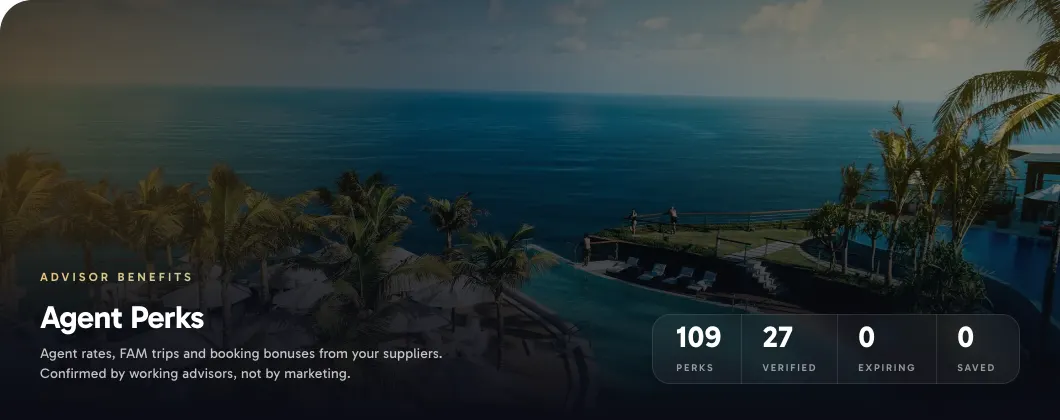
The Agent Perks database is a searchable, community-verified collection of travel agent benefits: agent rates, FAM trips, commission bonuses, member discounts, and limited-time promotions. Instead of hunting across supplier websites and Facebook groups to find out whether a rate still works, you can check here first, see what working advisors have actually experienced, and go into a booking with confidence.
Find it under Perks in the left sidebar (full accounts only).
Reading the Table
The table shows every published perk with its supplier, perk type, a short description, and a verification badge. Use the search bar to find a specific hotel brand, cruise line, or supplier. The filter panel lets you narrow by perk type (agent rate, FAM, commission bonus, member discount, promo) and by verification status.
Click any row to expand it in place. The expanded view shows the full detail: the discount or benefit amount, what credential is required (IATA, CLIA, ASTA, host-agency ID, etc.), any prerequisites the supplier requires, step-by-step booking instructions, and the booking link or portal URL. A comments section sits at the bottom of every expanded row, where advisors share tips, real rates they received, and caveats.
Verification Status
Every perk carries one of the following status labels:
New means no advisor has reported using this perk yet. The information came from a supplier source or a submission, but no one in the community has confirmed it in the field. Treat New perks as unverified leads worth investigating, not guaranteed benefits.
Advisor Verified means working advisors have confirmed this perk recently. The badge shows how many advisors confirmed it and how recently the most recent confirmation came in. This is the most reliable status. The verification comes from real people who actually used the perk, not from JourneyFuse staff or the supplier itself, so it reflects what is actually happening at the booking desk rather than what the supplier's website says.
Disputed means recent reports conflict. Some advisors confirmed the perk worked; others reported problems. Read the comments carefully before relying on it, and consider calling the supplier's trade desk to confirm before you put a client booking at risk.
Stale means the perk has not been confirmed by anyone in a long time. It may still work, but no advisor has recently used it. Worth checking directly with the supplier before booking.
Promo end date (on limited-time promotions) means the perk has a known expiration date shown on the row. Promos expire automatically when their end date passes, so anything you see in the table is still within its window. If you know a promo has ended early, use the thumbs-down button to flag it.
Using a Perk
- Find the perk in the table and expand the row.
- Read the credential requirements. Some perks require an IATA or CLIA number; others accept a host-agency letter or an ASTA membership card. Make sure you have the right credential before you call.
- Check the prerequisites section. Some agent rates require advance booking windows, minimum night stays, or that you book through a specific channel. Skipping this step is the most common reason bookings are declined at check-in.
- Follow the step-by-step booking instructions exactly. Some suppliers want you to book through their travel agent portal; others require a phone call to a specific desk; others use a promo code at the public website. The instructions reflect what has actually worked for other advisors.
- Present your credential at check-in exactly as the instructions describe. If the perk requires an IATA card, have the physical card ready. If it asks for a letter on host-agency letterhead, print it before you leave.
Contributing Back
The database is only as current as the advisors using it. Every report you add helps the people behind you.
Thumbs up after you use a perk. The confirmation button is inside the expanded row. Adding a note with the actual rate or benefit you received makes your confirmation far more useful than a bare thumbs-up. Notes like "Got $189/night at the Dolphin, checked in March 2026, used IATA card at front desk" give other advisors real data to work with. Confirmations with notes appear in the comments thread tagged as a verification, so they are easy to find.
Thumbs down if something went wrong. If a perk did not work, tap the thumbs-down button and pick a reason: rate lower than listed, program changed, link dead, or denied at check-in. Your report moves the perk toward Disputed or Stale status, which warns other advisors before they run into the same problem. You are not penalized for a negative report, and the reason you select helps the next advisor understand what specifically failed.
Comments for everything else. Use the comments section for tips that do not fit a simple up or down. Good comment content includes the actual rate you got versus the listed rate, which desk or agent code worked when others did not, seasonal caveats, and tips for a smooth check-in. Verifications with a note already appear in comments, so if you added a note when you confirmed, you do not need to post a separate comment.
Submitting a New Perk
If you know of a supplier benefit that is not in the database, click Submit a perk at the top of the Perks page. Fill in the supplier, perk type, description, benefit details, credential requirements, prerequisites, and booking instructions as completely as you can.
Submissions go to JourneyFuse for review before they are published. The review step checks that the perk is genuinely available to agents, screens out duplicate entries, and verifies that the booking instructions are accurate enough to be useful. You will not see your submission appear instantly, but once it passes review it is published to every advisor in the database.
Availability
The full Perks database is included with all JourneyFuse accounts. If you are a Lite advisor on a host-agency plan, you will see a preview of the Perks page with a few sample entries. To access the complete database and contribute verifications, upgrade to a full JourneyFuse account from the upgrade prompt on the preview page.
FAQ
Who verifies the perks? Working travel advisors who use the perks themselves. JourneyFuse reviews new submissions before publishing, but ongoing verification comes from the community. The Advisor Verified badge reflects real advisors' recent experiences, not supplier marketing materials.
Can I trust a perk with only one or two verifications? One or two confirmations is a reasonable signal, especially if they are recent. The more recent and the more confirmations, the more confident you can be. For anything involving a client booking, it is always worth a quick call to the supplier's trade desk to double-check the current terms.
What if a perk I submitted never appears? The review process may take a few days. If a perk is declined it is usually because it duplicates an existing entry, cannot be verified against a supplier source, or the booking instructions are incomplete. If you believe a declined perk should be published, reach out through the in-app support channel with as much detail as you can provide.
Does the database include agent rates at every supplier? Not yet. The database grows with community submissions. If a supplier you work with frequently is missing, submit what you know. The more complete an entry, the faster it clears review.
This is part of JourneyFuse’s itinerary builder for travel agents: reusable templates, a saved library and day-by-day itineraries.
Related Articles
Resource Guides
Create destination, packing, and tips guides, attach them to trips, and share them with your agency or the community.
Form Links and Source Tracking
Give a form a readable link on your own domain, tag that link per channel so every submission records where it came from, and fill in answers from the link.
Saving Resorts to Your Library
Save a resort once — your own description, photos, and private notes — and reuse it on every quote and itinerary from the Library picker.